


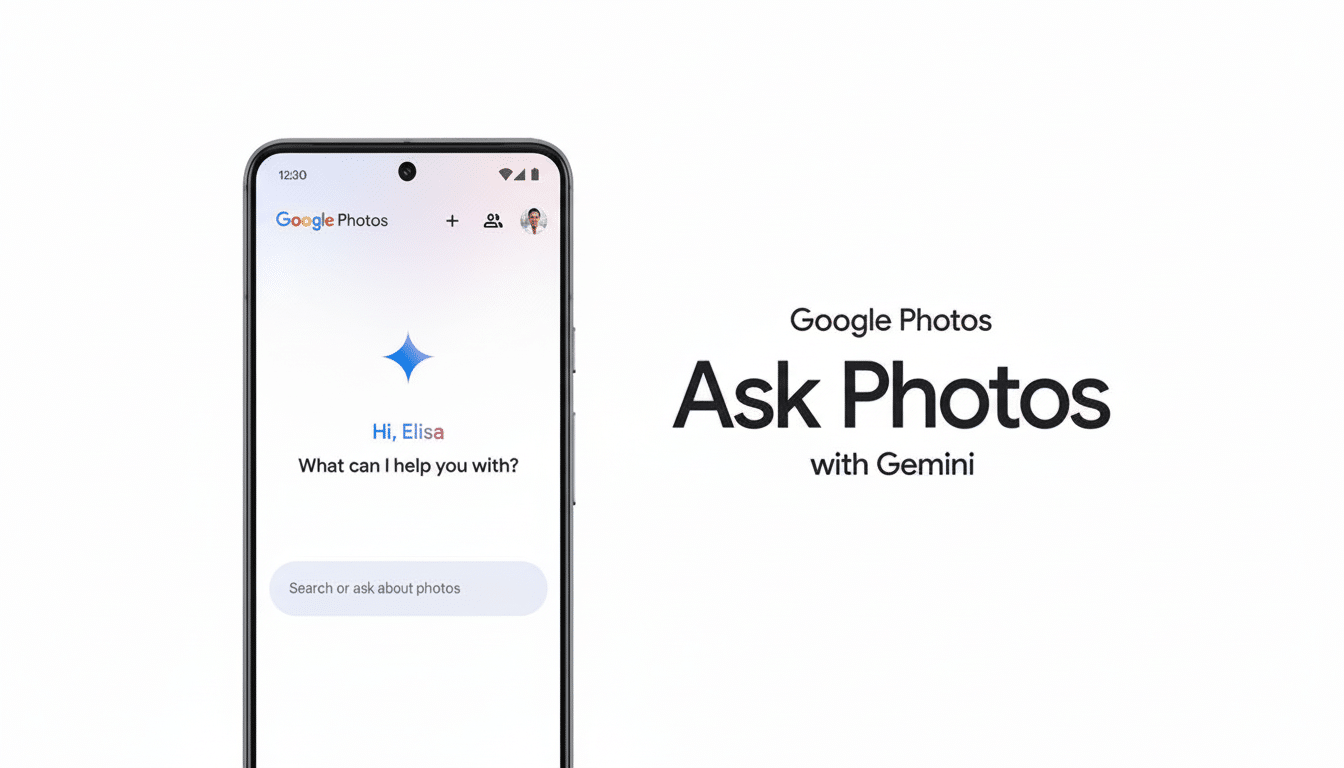
Google is expanding access to its chatbot-powered conversational editing tool in Photos, pushing the “Ask Photos” experience out of the hands of Pixel 10 users and onto a larger set of Android phones. The update to Photos brings voice- and text-based edits — which are powered by Gemini — into the main Photos editor, so now you can just describe what you want changed and watch the app do some of the work.
There are eligibility caveats. Google says the feature is rolling out to Android users in the US who are 18 or older and have their account language set to English, with Face Groups and location estimates turned on in Photos. If you fall in that camp, soon the update will bring a new “Help me edit” prompt directly into the editor for your device.
What the conversational editor can’t do, however
Ask Photos makes editing a back-and-forth. Tell the app, “Warm this photo and soften the background,” and it will apply color temperature adjustments along with blurring of the background in one step. If you’re not sure where to start, prompts such as “improve it” draw up a fast stack of recommendations for improving such photographs (exposure adjustment, contrast, white balance, and noise reduction) like what might occur to an experienced editor first.
You can also get specific. “We’ll need the glare removed from the window,” “straighten the horizon and crop tighter,” or “brighten the man in the foreground” are a few. The tool uses Gemini models to automatically interpret intent and chain together multiple edits, layering magic such as Magic Eraser, background blur, and portrait relighting over a conversational model that eliminates the need to go menu-hunting.
Crucially, edits remain non-destructive. Compare before-and-after, roll back a single step, or entirely revert — useful when the AI’s first play isn’t quite what you had in mind.
Who’s eligible and how to turn the feature on in Photos
Google stipulates four requirements:
- Android device in the US
- 18 years old or older
- Google account with English set as its language
- Face Groups and location estimates active within Google Photos
The last two are meant to help the app “better understand” scene context and people within the frame, which may result in better suggestions and more accurate semantic edits.
To look for settings, you can open Photos, tap your profile, and visit Photos settings.
- Make sure “Face Groups” is enabled under Group similar faces.
- Under “Location,” enable location estimates.
- Verify in your Google Account settings that your account language is English.
- Update the Photos app from the Play Store — this rollout is server-side and might take some time even for the newest version.
If you’re concerned about privacy, keep in mind that Face Groups can be turned off at any time, and the feature works without them — albeit with less potential context for people-centric edits.
Google’s privacy documentation outlines how face clustering and location estimates are done, and how they can be modified.
How it compares to other AI tools in Photos
Google Photos already has Magic Eraser, Best Take, and Magic Editor for object removal, multi-frame face swaps, and advanced editing. Ask Photos isn’t replacing them; it’s coordinating them. Rather than having to open every tool by hand, you describe what you want — “get rid of the photobomber and boost the sunset” — and the editor follows through with the correct processing steps. This is more of a workflow enhancement than an entirely new effect.
That’s in harmony with a larger trend toward natural-language interfaces in creative apps. Adobe, for instance, has manufactured promptable adjustments in Lightroom and Photoshop; device manufacturers such as Samsung and Apple have built one-tap cleanup tools right into their galleries. What sets Ask Photos apart is the deep integration with Google’s on-device and cloud-based AI models, as well as its support for multiple edits within a single request.
Real-world use cases and first impressions
It does well in hands-on testing by reviewers, from nailing everyday fixes — making a dim indoor shot more vibrant, softening harsh shadows on someone’s face, or cleaning up a cluttered background — to occasionally overdoing removals of complex objects. That’s normal; pro editors often make several passes on tricky scenes too. But for sharing every day, conversational edits can turn a “good enough” shot into a keeper in seconds.
Imagine a travel snapshot with an off-kilter horizon line, a blown-out sky, and random passerby. A single prompt, such as “straighten, darken the sky a bit, and remove the person on the left,” usually sends you 90% of the way toward your final photo destination, with provisional touches if you feel like intervening manually afterward.
How to try it on your eligible Android device
On an eligible Android phone, open Google Photos and tap on any photo. Tap Edit, find the “Help me edit” entry point, and either speak or type out your request. Begin with simple prompts such as “fix lighting,” then go more specific — “add gentle portrait blur” or “make colors warmer (but keep skin tones natural).” And if the feature hasn’t yet arrived, keep checking; Google has been rolling it out progressively to people.
Like any generative feature, your mileage will vary depending on the scene. But if you like fast, high-quality edits with very little work involved, Ask Photos looks like one of the most useful things to land on Google Photos since Magic Eraser — now open to Pixel 10 and above.