


Google’s built-in Pixel VPN just got smarter, and if you own a recent Pixel, you likely have a free, full-fledged VPN at your fingertips. This guide cuts through the clutter and shows you exactly how to turn it on, tailor it to your daily routine, and understand what it can and can’t do for your privacy.
Check If Your Pixel Supports The Free VPN
Most modern Pixels include the free VPN, but there are a few holdouts. Notably, the Pixel 6, Pixel 6 Pro, and Pixel 6a don’t support it, even though they still receive Android updates. If you’re on a newer model, you should be covered.
Availability also depends on your region. The VPN works in the US, UK, Canada, Japan, and many other markets. If you travel often or use a work profile, your carrier or administrator settings may limit VPN usage, so it’s worth checking your device’s support pages or your IT policy.
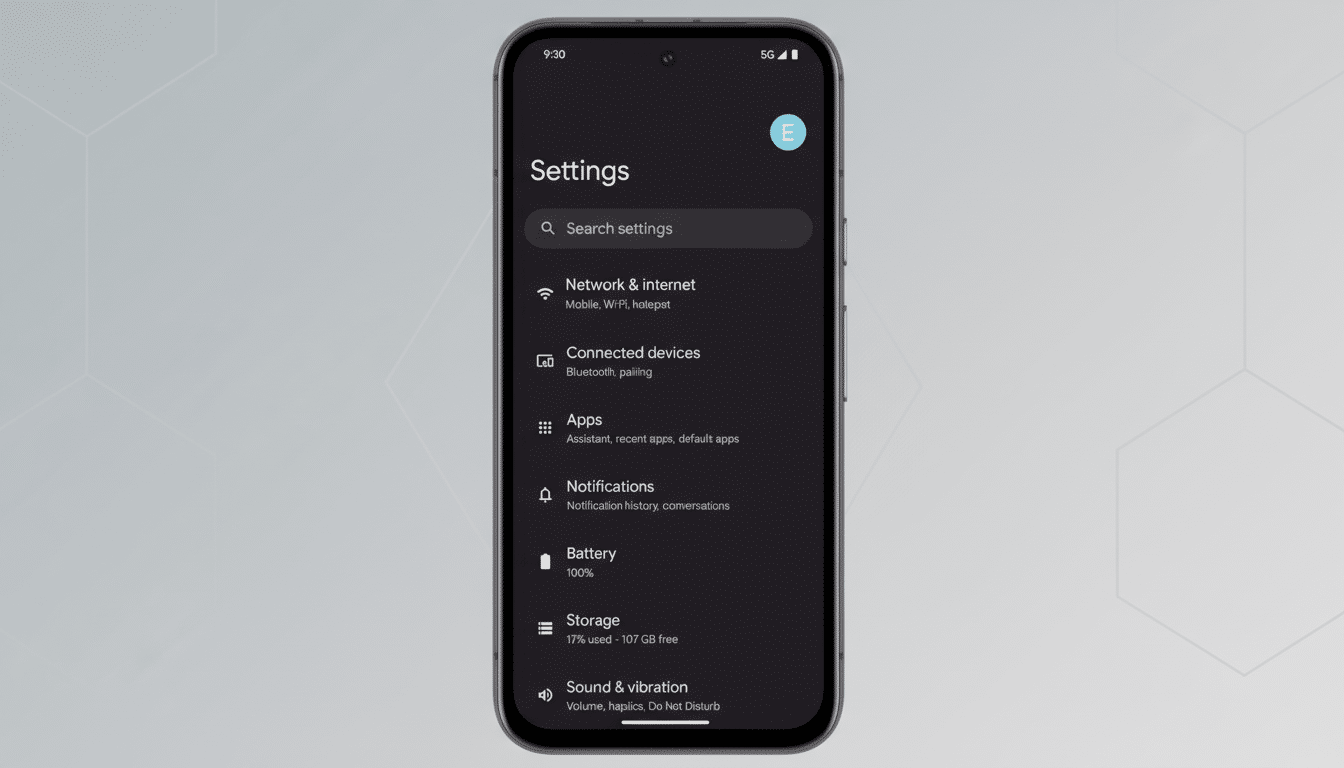
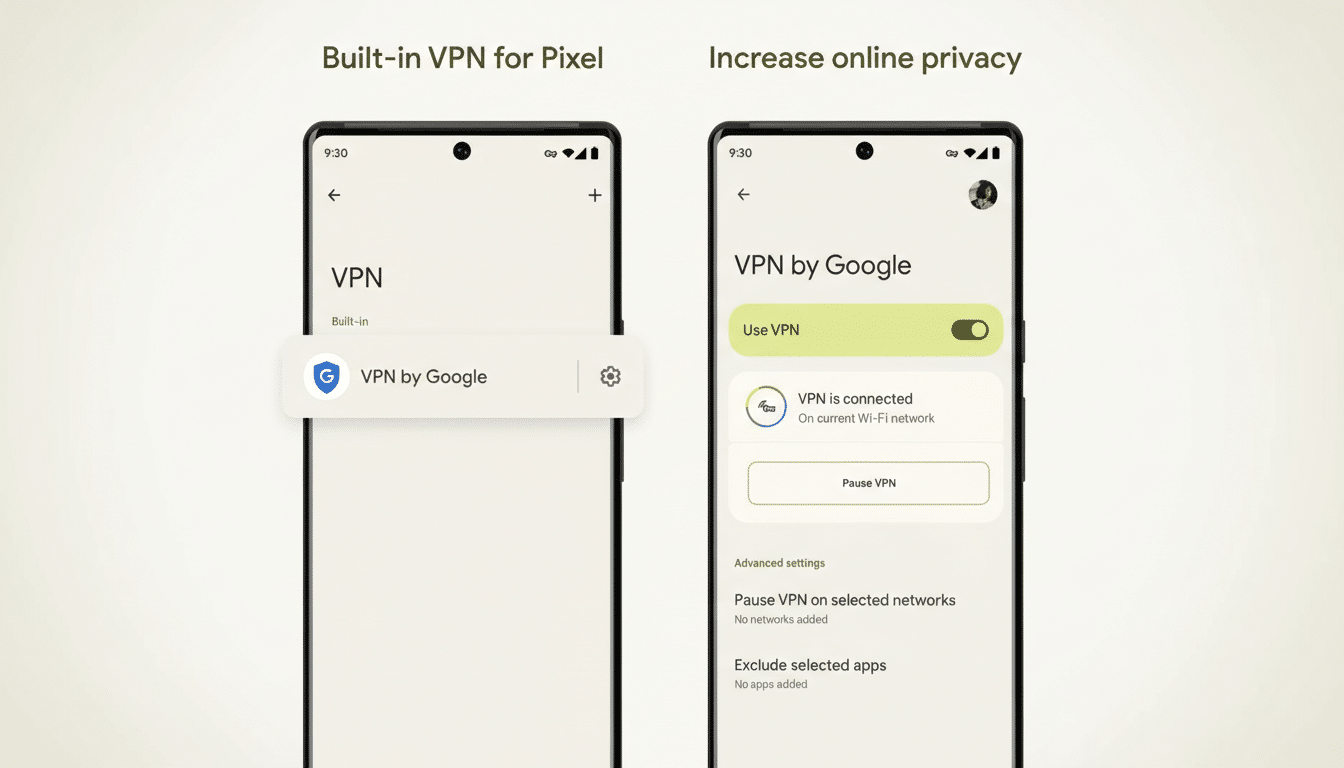
To confirm the feature is present on your phone, open Settings, tap Network & Internet, then VPN. You should see Pixel VPN by Google (or a similarly labeled entry). If it’s missing, your device or region likely isn’t eligible yet.
Turn It On Step by Step on Your Pixel Phone
From Settings > Network & Internet > VPN, tap Pixel VPN by Google, then toggle it on or choose Connect. Approve any prompts. Within a few seconds, you’ll see a key icon in your status bar indicating traffic is routed through the VPN.
Add the Pixel VPN tile to Quick Settings for faster control. Pull down your notifications twice, tap the pencil or edit icon, and drag the VPN tile into your active set. The tile now shows live status such as Connected, Connecting, Paused, or Can’t Connect, so you can glance-check without diving into Settings.
Fine-tune Privacy Controls and Set Smart Exceptions
Mobile vs. Wi-Fi behavior: By default, the VPN may stay off on mobile networks to conserve data and battery. If you want protection everywhere, open the Pixel VPN settings and remove Mobile network from the paused list so the VPN also runs on cellular.
Per-Wi-Fi exceptions: You can pause the VPN on trusted home or work networks. In Pixel VPN settings, enable Wi-Fi controls. You’ll be asked to grant location permission so Android can identify nearby SSIDs; this is a standard Android requirement for Wi-Fi network detection. Then select any saved networks where you prefer the VPN to sit out.
Split tunneling for apps: Tap Exclude selected apps to let banking, streaming, or smart-home apps bypass the VPN if they misbehave behind encrypted tunnels. This avoids constant toggling while keeping everything else protected.
Notifications and always-on: In Notifications, decide whether you want persistent status alerts. Depending on your model, you may also see Android’s Always-on VPN and Block connections without VPN options under the VPN entry; enabling them creates a soft “kill switch” that helps prevent accidental leaks when the VPN drops.
What Pixel VPN Does and Doesn’t Do for Privacy
Encryption and logs: Google states that network traffic is encrypted and that identifiable logs about your activity aren’t retained by the VPN service. Think of it as transport privacy: it shields your connection from local observers like public Wi-Fi operators, but it doesn’t make you anonymous to every website you visit.
Location and streaming: Pixel VPN aims to protect privacy, not to spoof locations. Some streaming or ticketing services may still detect and restrict VPN traffic. If a specific app refuses to load, use the split tunneling option to exclude that app from the VPN.
Performance: Any VPN adds a small overhead. On fast broadband, the hit is usually modest and most day-to-day browsing feels unchanged. If gaming or video calls seem sluggish, try excluding those apps or allow the VPN to pause on your home network.
Troubleshooting Common Pixel VPN Connection Hiccups
Can’t connect: Toggle Airplane mode for 10 seconds, then try again. Verify private DNS is set to Automatic in Settings > Network & Internet > Private DNS. If you use another VPN or firewall app, disable it to avoid conflicts.
Wi-Fi exceptions not showing: Revisit the Wi-Fi controls in Pixel VPN and confirm you granted location permission Allow all the time. Without that, Android can’t read saved SSIDs for per-network rules.
Battery concerns: Heavy background sync plus VPN can tax older batteries. Consider keeping the VPN active on public Wi-Fi and cellular but pausing it on your home network, or exclude high-bandwidth apps you fully trust.
Why Using Pixel’s Free Built-in VPN Is Worth It
Public Wi-Fi remains a soft target for data interception, and consumer groups and security researchers routinely warn about “evil twin” hotspots that mimic legitimate networks in airports and cafes. A VPN blunts those risks by encrypting the traffic leaving your phone, which is why digital rights advocates have long recommended using one on untrusted networks.
Adoption is mainstream, not niche: Research from GlobalWebIndex has consistently shown that roughly a third of internet users report using a VPN service, reflecting a rising baseline of privacy awareness. With Pixel VPN built in and free, there’s little friction to joining that crowd—especially when you’re checking bank accounts, sending work emails, or booking travel on the go.
Bottom line: If you carry a recent Pixel, you already own a capable VPN. Spend five minutes setting up Quick Settings, exceptions, and app exclusions, and you’ll have a safer default for everyday browsing without adding another subscription or app to manage.