


Google quietly flipped a long‑awaited switch in Gemini: you can now read from and add events to multiple calendars. It sounds small, but this closes one of Gemini’s most frustrating gaps and finally makes it viable for anyone juggling work, school, and family schedules. The catch is that the feature still revolves around a single Google account, and the setting to change your default calendar lives in an older corner of Assistant’s preferences.
What Changed And Why It Matters For Gemini Calendars
Until recently, Gemini only saw your primary Google Calendar. If your life lived across secondary or shared calendars—think a team roadmap, a family plan, or a class schedule—Gemini simply ignored them. Now, it can read events from secondary and shared calendars on your primary account and create new events on those calendars when you ask.
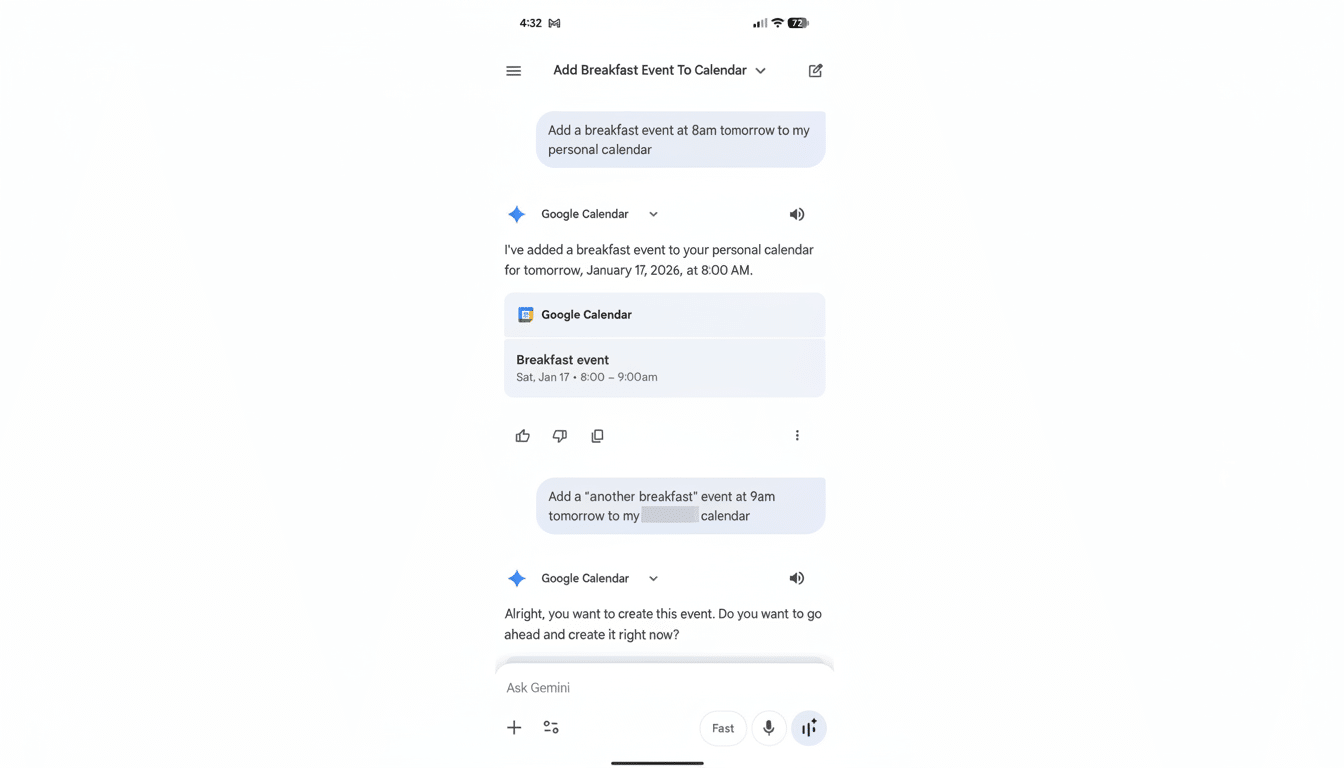
That unlocks practical queries like “What’s on my calendar tomorrow?” that actually reflect your real day, not just one slice of it. It also means you can say “Add a parent‑teacher meeting Friday at 3 PM to my Family calendar” and Gemini will file it in the right place. For people who keep distinct calendars to reduce clutter or share responsibilities, this is the difference between a useful assistant and a toy.
Importantly, the scope still centers on one Google account. If your work calendar lives on a separate Google Workspace account, Gemini won’t natively merge that. A practical workaround is to share your work or school calendar with your personal account (with the appropriate permissions), which lets Gemini see it while you retain admin controls on the original account. This mirrors how power users have long handled cross‑account visibility in Google Calendar itself.
How To Make It Work Day To Day With Gemini Calendars
On phones and the web, Gemini now recognizes calendar names when you create events. Natural prompts like “Schedule dinner with Maya tomorrow at 8 PM on my Family calendar” or “Move Thursday’s design review to my Project Alpha calendar” work as expected. If you don’t specify a calendar, Gemini files the event in your default calendar.
Changing that default is possible, but the control isn’t in a shiny Gemini menu yet. Open the Google app or the Google Home app, tap your profile photo, then Settings > Google Assistant > Calendar. Under Default calendar to create events, pick any calendar that belongs to your primary account. From then on, “Create an event” will target that calendar unless you override it by naming another calendar in your request.
If you rely on smart speakers and displays, behavior may vary. On some Nest devices, specifying a calendar name works reliably; on others, it may revert to the default. When in doubt, explicitly name the calendar. This is a server‑side capability, so you don’t need an app update—just make sure you’re signed into the right account and that the relevant calendars are visible to it.
Limits And Oddities You May Encounter With Gemini Calendars
Cross‑account aggregation remains the biggest limitation. Gemini treats calendars from other Google accounts as invisible unless they’re shared into your primary account. That’s fine for many households and small teams, but enterprises may prefer not to share calendars to personal accounts due to policy. Workspace admins can enforce sharing rules, so check your organization’s guidelines before changing permissions.
There’s also a split‑brain settings story. The most important control—default calendar—still lives under legacy Assistant settings rather than a Gemini menu. Expect Google to unify these controls, but for now it’s counterintuitive. Additionally, toggling visibility for calendars in some menus may not change how Gemini answers; access and default selection matter more than those per‑device visibility switches.
Finally, the feature supports the typical Google Calendar hierarchy: primary calendars, additional calendars you own, and calendars shared with you. Resource calendars (like meeting rooms) and domain‑level calendars should surface if shared to your account with the right permissions, but Gemini will respect whatever access level you’ve been granted by the owner.
Why This Signals A Course Correction For Google Gemini
Multiple calendars are table stakes for a modern assistant. Google Assistant supported them for years, and their absence in Gemini had become a symbolic sore spot in user forums and product feedback channels. Restoring the capability suggests Google is moving through the backlog of everyday features users expect while it pushes on generative breakthroughs.
The next milestones are clear: true multi‑account support, parity across phones, web, and smart speakers, and a consolidated settings experience inside Gemini. Until then, this quiet fix dramatically improves Gemini’s usefulness for the millions of people who organize life across more than one calendar—no hacks, no spreadsheets, just a voice or a prompt that finally understands the full picture of your day.