


Google is rolling out a smarter way to use its AI assistant on Android phones, enabling Gemini to run side by side with any app in split-screen. A new “Share screen and app content” control inside Gemini lets the assistant see what’s on the other half of your display, analyze it, and respond in context—without the clunky overlay that used to block everything else. The capability is tied to the Google app (version 17.5.42.ve.arm64) and requires no hidden flags or developer toggles.
How Gemini’s new side-by-side split-screen mode works
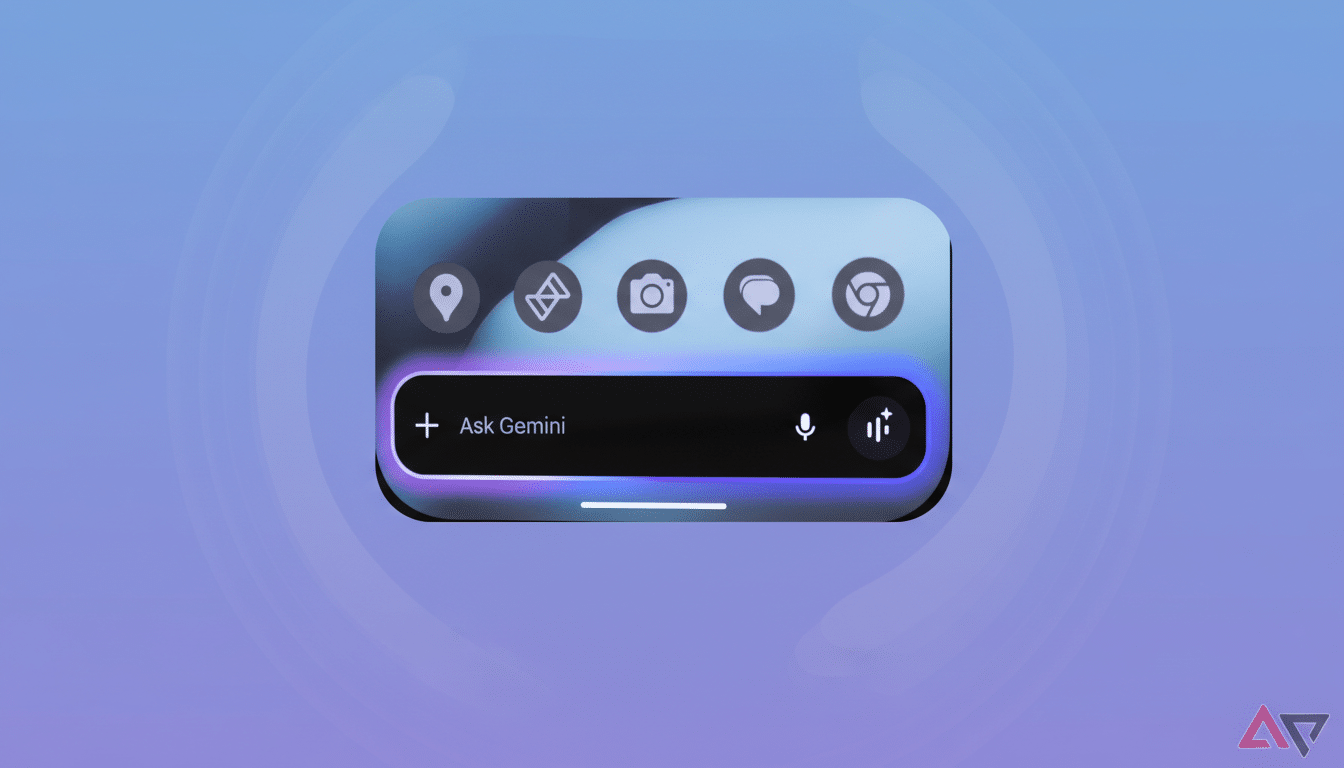
Launch split-screen as usual, place Gemini on one side, and you’ll notice a new option on its home screen and in chats: “Share screen and app content.” Tap it and a brief glow animation appears, followed by a “Sharing” indicator. From that point, Gemini can reference whatever is open next to it to generate answers, summaries, or step-by-step help tied to what you’re actually viewing.
What Gemini reads depends on the app. When paired with Chrome, it doesn’t scrape the pixels; it pulls the active tab’s URL—similar to using an “ask this page” action—so it can parse the webpage directly. With most non-browser apps, Gemini captures a screenshot of the adjacent window to understand the content. During this capture, Gemini blacks out its own pane to minimize confusion and clarify what’s being shared.
In practice, this shifts Gemini from a general chatbot into a true on-screen assistant. You can summarize a long article while taking notes in Keep, translate a chat thread while composing a response, extract event details from a PDF and drop them into Calendar, or ask for code or formula explanations while an IDE or spreadsheet is visible. It’s the difference between copying and pasting into a chat box and simply working where you already are.
Compatibility and rollout across Android devices
The functionality appears in the Google app version 17.5.42.ve.arm64 and is switching on quietly for users—no special settings required. Availability can vary by device and region as Google often staggers server-side activations, even when the right app version is installed.
Early checks show the experience running smoothly on a Pixel 9 with the latest Android beta and working well on large screens like the OnePlus Pad 3. On other devices, such as the OnePlus 13R, support may be incomplete for now, reflecting Android’s historically uneven split-screen behavior across manufacturers and builds. If you’re curious, update the Google app, then open Gemini alongside another app to see if the “Share screen and app content” prompt appears.
Keep in mind that certain apps intentionally block screenshots for security (for example, banking or DRM-laden media), and Gemini won’t be able to “see” what those apps display. In those cases, expect limited or no contextual understanding.
Why This Matters For Mobile Productivity
Mobile assistants historically demanded context you had to provide—copying text, sharing links, or describing what’s on screen. Running Gemini side by side lowers that friction. Usability research from groups like Nielsen Norman Group has long shown that reducing context switching helps people complete tasks faster and with fewer errors. By letting the assistant observe what you’re already doing, Gemini saves taps and mental overhead.
Until now, the best case for contextual AI on Android lived on tablets and foldables, where multitasking is more natural. But foldables remain a low-single-digit share of global shipments, according to IDC, which means bringing this capability to standard slabs impacts far more users. It also aligns with a broader industry push toward screen-aware assistants—think Microsoft’s Copilot reading a page in Edge or on-device helpers that react to whatever is onscreen—without forcing you into a full-screen overlay.
For knowledge workers, students, and anyone doing research or planning, the payoff is immediate: fewer mode switches, richer prompts grounded in what you see, and outputs you can drag into your workflow in the same view. It’s a small UI change with big implications for how often you’ll actually use an assistant during real work.
Privacy implications and key limitations to expect
When you enable sharing, Gemini either ingests the current URL (in browsers) or a screenshot of the adjacent app. That content may be processed by Google services consistent with your account and app settings, so consider what you put side by side. The explicit “Sharing” indicator and the blackout of Gemini’s own panel provide visual assurances, and you can stop sharing by closing split-screen or leaving the Gemini pane.
Beyond app restrictions, there are practical caveats: small phone displays can feel cramped in 50/50 split, performance may vary depending on device resources, and some OEM skins still treat split-screen as an optional extra. If you encounter odd behavior, try pairing Gemini with Chrome for URL-based parsing or enlarge the non-Gemini pane before tapping the share control.
The bottom line on Gemini’s split-screen assistant
Gemini’s new split-screen awareness turns the assistant into a true sidecar for Android multitasking. It’s simple, fast, and—when supported on your device—surprisingly capable. Check your Google app version, open Gemini next to whatever you’re working on, and tap “Share screen and app content” to see how much smoother context-aware help can be.