


Google has begun incorporating new Gemini features into Sheets, transforming the AI from a helpful formula power-user tool into an actual spreadsheet co-pilot. Above and beyond functional formulas, Gemini can now illuminate complex formulas’ inner workings, diagnose their failures, and offer multiple solutions for the same result — capabilities specifically designed to smooth your day-to-day work of analysis and reporting.
What’s new in Sheets for Gemini-powered formulas
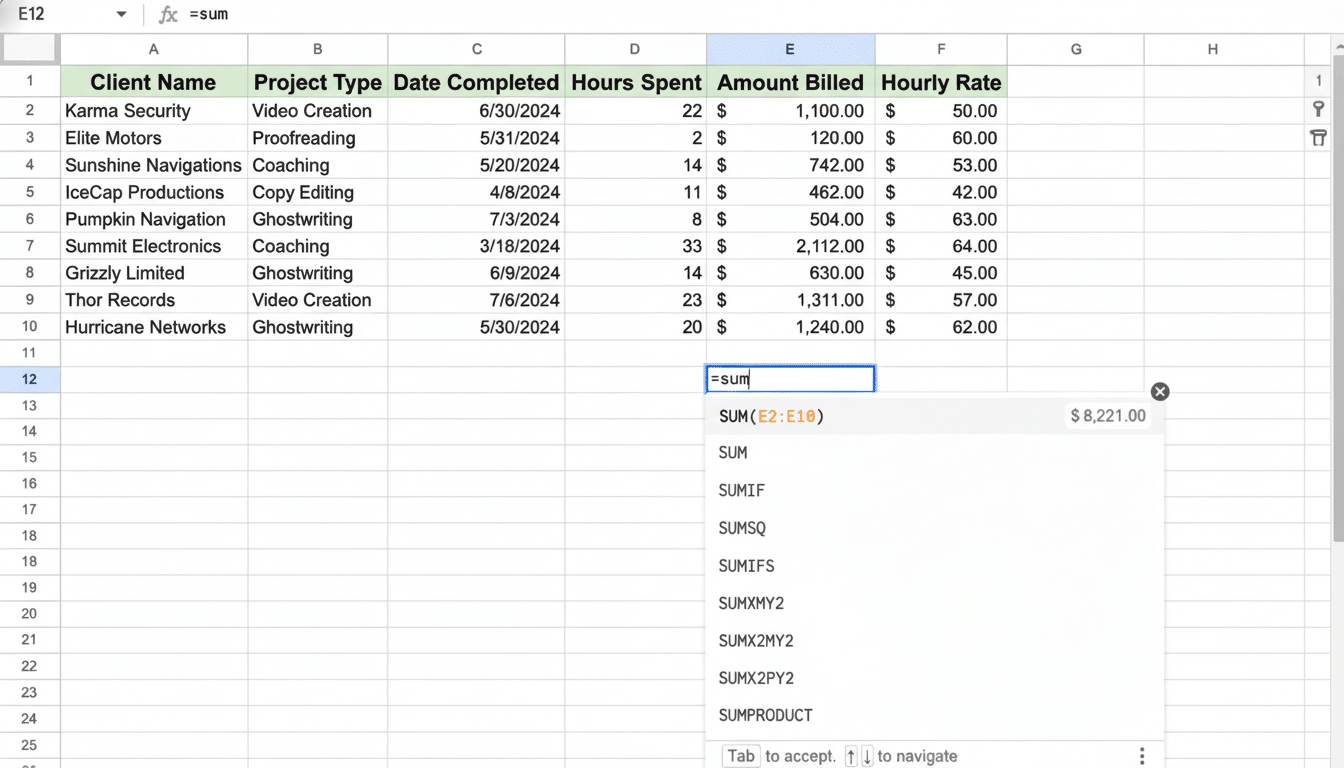
The update introduces three core skills. First up, formula explanations: when Gemini suggests a function (perhaps an INDEX/MATCH combo or an ARRAYFORMULA), you can ask it to explain each part in straightforward terms. That includes explaining ranges, criteria, and how nesting works so you can make sense of the logic — and modify it with confidence.
- What’s new in Sheets for Gemini-powered formulas
- Why these Gemini formula upgrades in Sheets matter
- Real-world examples of Gemini help in Sheets
- How Gemini in Sheets compares with other AI tools
- Availability and access for Sheets Gemini features
- Tips to maximize Gemini for better Sheets formulas
- The bottom line on Gemini’s new Sheets formula help
Second, error diagnosis and correction. If a formula returns a #N/A or #VALUE? error, Gemini is able to parse the expression, diagnose the probable cause (different range types or sizes, text values instead of numerical ones, or absent anchors), and suggest a remedy — often a wrapper with IFERROR, casting data using VALUE or TO_TEXT, or tweaking absolute references.
Third, alternative paths. Rather than a single “best guess,” Gemini can serve up multiple formulas to achieve the same task — for example, comparing VLOOKUP with XLOOKUP, or offering both a regex approach (with REGEXEXTRACT) and a text function-based approach (LEFT/RIGHT/MID) for parsing.
Why these Gemini formula upgrades in Sheets matter
Spreadsheets drive everything from finance reconciliations to marketing attribution models, and yet formula fluency is a bottleneck. Research from the University of Hawaii’s Raymond Panko has long shown that a substantial percentage of working spreadsheets have errors — small mistakes that cascade quietly through forecasts and decisions. By teaching logic and catching frequent pitfalls, Gemini’s release notes address the root causes of formula bugs: misunderstanding and manual trial-and-error.
The timing also comes amid a broader productivity push in office software. Competition has also arrived: Generative AI is being woven into daily workflows, and for people who spend hours debugging cell references or refactoring lookups (spreadsheet users), those with prompt explanations and guided corrections stand to reap outsized benefits.
Real-world examples of Gemini help in Sheets
- Sales ops: Ask Gemini to turn a brittle VLOOKUP into a more robust XLOOKUP for when columns get moved, then ask for an explanation of the arguments and why exact match is safer with SKUs.
- Marketing analytics: Two ways to dedupe campaign IDs, one with UNIQUE and COUNTIF to mark repeats, another using an ARRAYFORMULA that removes only subsequent occurrences — plus error-resistant versions that prevent blanks.
- Finance: Debug a cash-flow model where you are returning unexpected results from date comparison; Gemini will find text-formatted dates and recommend wrapping with DATEVALUE or coercing the type before the SUMIFS.
How Gemini in Sheets compares with other AI tools
Microsoft’s Copilot in Excel already offers natural-language prompts for creating formulas and analyzing tables, as well as explanations for the suggested logic. Gemini’s focus on multi-path recommendations and stepwise error diagnosis closes that gap within a browser-native workflow. Beyond that, tools like ChatGPT’s data analysis mode can scrub and summarize CSVs outside of spreadsheet apps, but they need a file round-trip and none are embedded in collaborative cells, comments, and protected ranges.
Availability and access for Sheets Gemini features
The Workspace team noted that the new functionality is rolling out now within Sheets for Business and Enterprise plans, and users who have AI Pro and Ultra can access it. You’ll see Gemini options in the formula assistant and side panel, where you can ask for help interpreting them, ask “why did this fail?”, and rephrase formulas in context.
Tips to maximize Gemini for better Sheets formulas
- Be clear in your intent: “I want the max order date per customer; and break ties by order value.” Clear questions lead to better logic for Gemini and make it more likely the app will suggest different options.
- Stress-test results: Check performance with smaller known datasets before rolling out a solution to ensure the proposed formula can handle blanks, mixed types, boundary cases, and so on.
- Opt for durable patterns: When Gemini serves up a choice, think longevity. XLOOKUP can simply outmuscle VLOOKUP; the capability of INDEX/MATCH to survive in large models can exceed that of some other functions; LET can turn a long formula into an easily readable script — but so what?
- Consider governance: Admin controls in Workspace can help you manage AI capabilities and data access. Sensitive sheets should utilize protections, named ranges, and audit trails.
The bottom line on Gemini’s new Sheets formula help
Gemini’s explain, fix, and alternative-suggestion skills turn Sheets into something that you need not master but can ally with to think through problems.
For teams that live in spreadsheets, it’s less time jockeying with syntax and more time on testing hunches, sharing learnings, and deciding what to do next with confidence.