


If you’re moving from document to email to web and back all day, your search bar is either your best friend or a slow detour. The best upgrade you can give it at the moment, however, is a new free-floating search overlay that brings Google’s results pages, Lens searches, and AI-generated summaries right into Windows — no browser tab necessary. It’s a tiny thing that cuts down on context switching, which research from the University of California, Irvine has associated with lost productivity in significant quantities when you’ve got to snap back and forth so much.
What This Refresh Actually Accomplishes on Windows
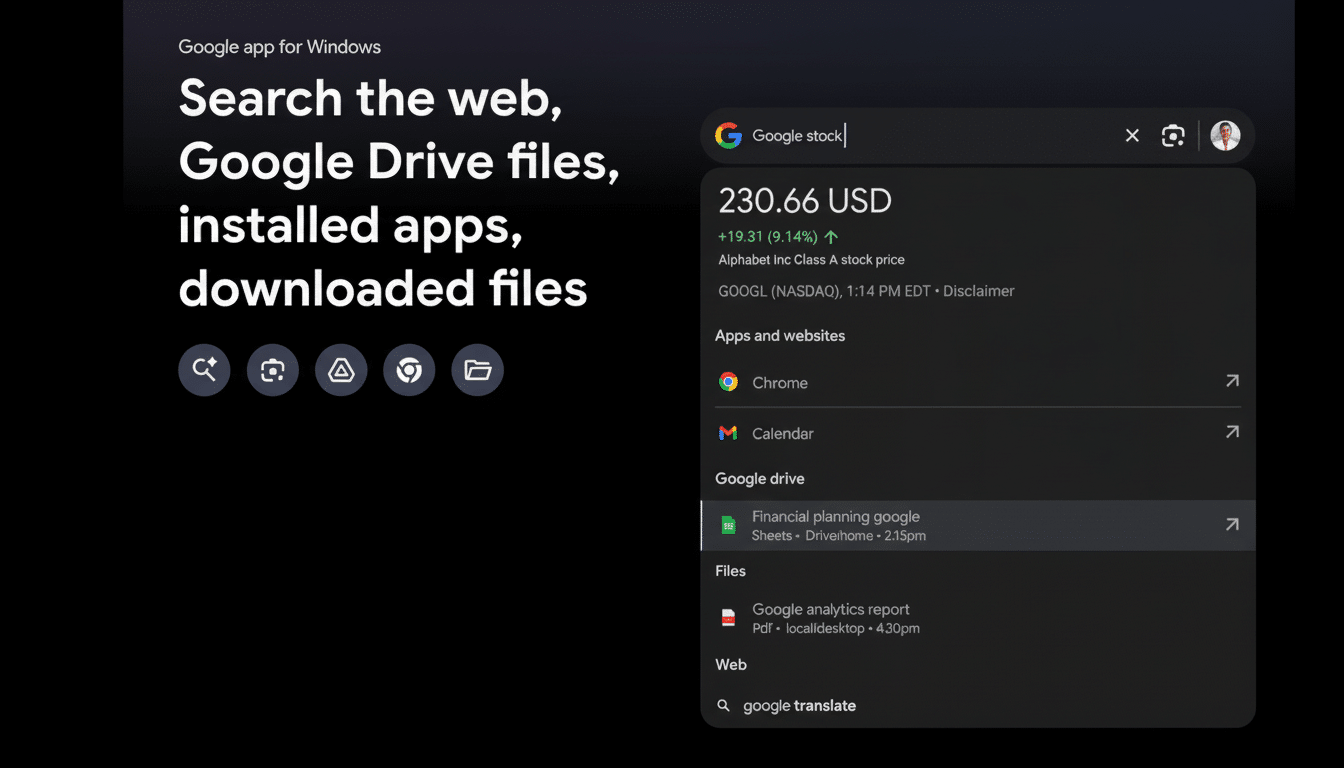
Google’s test Windows app drops a system-wide search bar you can invoke from anywhere on your PC. Type in a query and you receive an information-packed, scrollable results list featuring the usual filters (like Images, News, Shopping, Videos) and even an optional AI overview. It also integrates Google Lens, for quickly selecting text or an image on your screen to search, copy, or translate — a useful feature in cases where the interface is locked and screenshots or PDFs are involved.
- What This Refresh Actually Accomplishes on Windows
- How To Turn On the Free-Floating Search Overlay
- Power Tips That Actually Save You Real Time
- Privacy And Control You Do Want To Check
- Availability and Known Limits During Public Testing
- Will It Replace Built-In Windows Search Completely?
- If You Want Even More, There Are Free Alternatives
- Why This Upgrade Matters for Everyday Windows Work
How To Turn On the Free-Floating Search Overlay
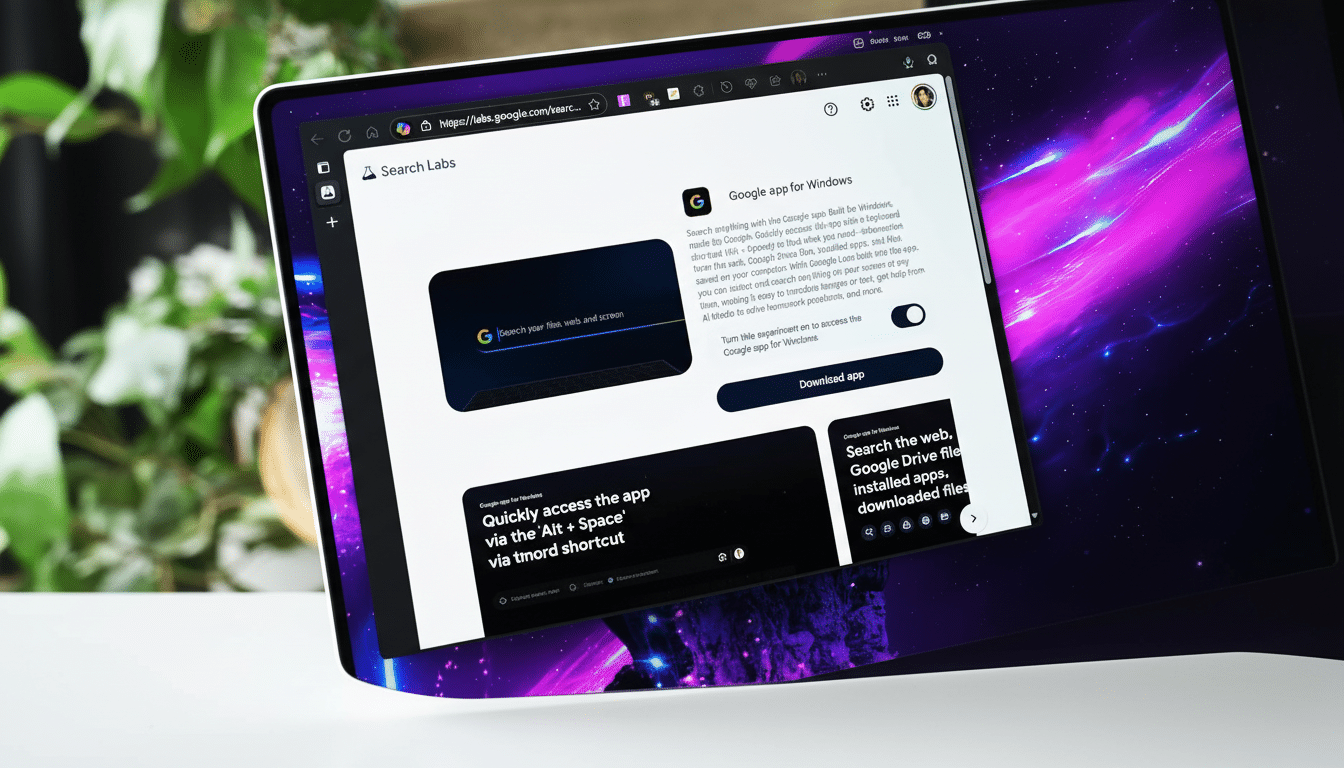
It lives in Google Labs, where the company tests features to see if they take off. Turn on the “Google app for Windows” experiment, download and install the installer, then sign in with your Google account. During setup, you’re given the option to permit access to local files and Google Drive so that the app can include those in results. You can have both enabled, just one, or neither of them — and adjust the decision later in settings.
Use Alt+Space to bring up the search field after it’s installed. Type your question and the answer is immediately at your fingertips without opening a browser. Press Alt+Space again to close it. And because it’s an overlay, the bar functions over full-screen apps, virtual desktops, or multiple monitors without interrupting your flow.
Power Tips That Actually Save You Real Time
Use Lens on anything visible: not only full-page views of a paper, but also Arabic text in a video or an image and even pictures from your camera roll, which you can translate or copy to get translated text without retyping. If you triage a lot of research, the in-window filters retain the behavior of Google’s web version: You can jump between Images for a diagram and News for a timeline without having to deal with tab sprawl.
Keyboard-first users will also appreciate that the overlay comes up relatively quickly after Alt+Space, which can help keep you in your editor or terminal. If you depend on AI summaries to skim a topic, the AI mode compresses the top hits, useful for expedited briefings or writing prompts.
Privacy And Control You Do Want To Check
Determine if you want local files and Drive to be included. If you turn them on, your query can pull up matching content from those places; if you’d prefer to keep web and personal searching distinct, leave it off. And as with any desktop utility you install, check what the app can capture with Lens enabled and make sure screen selection is disabled if your work exposes sensitive data.
Availability and Known Limits During Public Testing
The app works on Windows 10 and 11, and during testing it is available only to users in the United States, with Google citing capacity restrictions. That caveat is significant: According to data from StatCounter, Windows still runs the vast majority of desktop PCs around the world, so demand can surge quickly when new tools emerge.
Will It Replace Built-In Windows Search Completely?
Not entirely — and that’s fine. Use built-in Windows search for apps, settings, and files stored on your PC; use the floating overlay for web search results, quick translations, and Lens capture. And if you already use Microsoft PowerToys, remember that PowerToys Run also defaults to Alt+Space. One option would be to simply reassign a shortcut so there isn’t any conflict.
If You Want Even More, There Are Free Alternatives
Pair the overlay and dedicated search tools for a full holistic setup.
- Everything by Voidtools offers instant local file search on enormous drives.
- PowerToys Run is a power launcher (also good for performing calculations).
- Launchers like Wox, Ueli, and Listary add extensible workflows, hotkeys, and plugins.
None are a substitute for web results, but they in aggregate save you the time of hunting around yourself.
Why This Upgrade Matters for Everyday Windows Work
Every time you Alt+Tab to a browser, open a tab, and go to a search page, you add friction. Multiply that by dozens of questions over the course of a day and those minutes add up. According to research on interruptions, it can take many long minutes to fully regain your focus. A system-level search overlay cuts down on much of that tax (especially for knowledge workers, analysts, and coders who have more keypresses in the middle of doing a task).
The bottom line: A floating search bar is a small shift that has an impact. It brings web, translation, and visual lookup one keystroke away, allowing you to keep your workspace clean. That’s the kind of upgrade, for a platform as omnipresent as Windows, that pays back every hour you’re at your desk.