


Samsung’s One UI is clean and packed with features, but it also comes with a long list of preinstalled apps that many people don’t want. Shrinking that list can free up storage, reduce background battery usage, and clean up your notifications. Data.ai’s app usage studies always find the average person has a couple of apps they use every day and 20 apps installed, making good pruning worth your time.
Here are five first-party Samsung apps that are often safe to remove or disable if they’re not to your liking. Naming can be different based on region and One UI version, and some apps may be disable-only. The good news is you can always re-enable them later.
- Samsung Free or Samsung News: Disable the leftmost panel
- Samsung TV Plus: When it’s fine to disable the app
- Samsung Global Goals: Opt out of the charity app
- Samsung Shop: Reduce promos by disabling the app
- Samsung Kids: Disable if you never share your phone
- Uninstall or disable Samsung apps safely in One UI
- What you gain after cleanup: space, focus, and battery
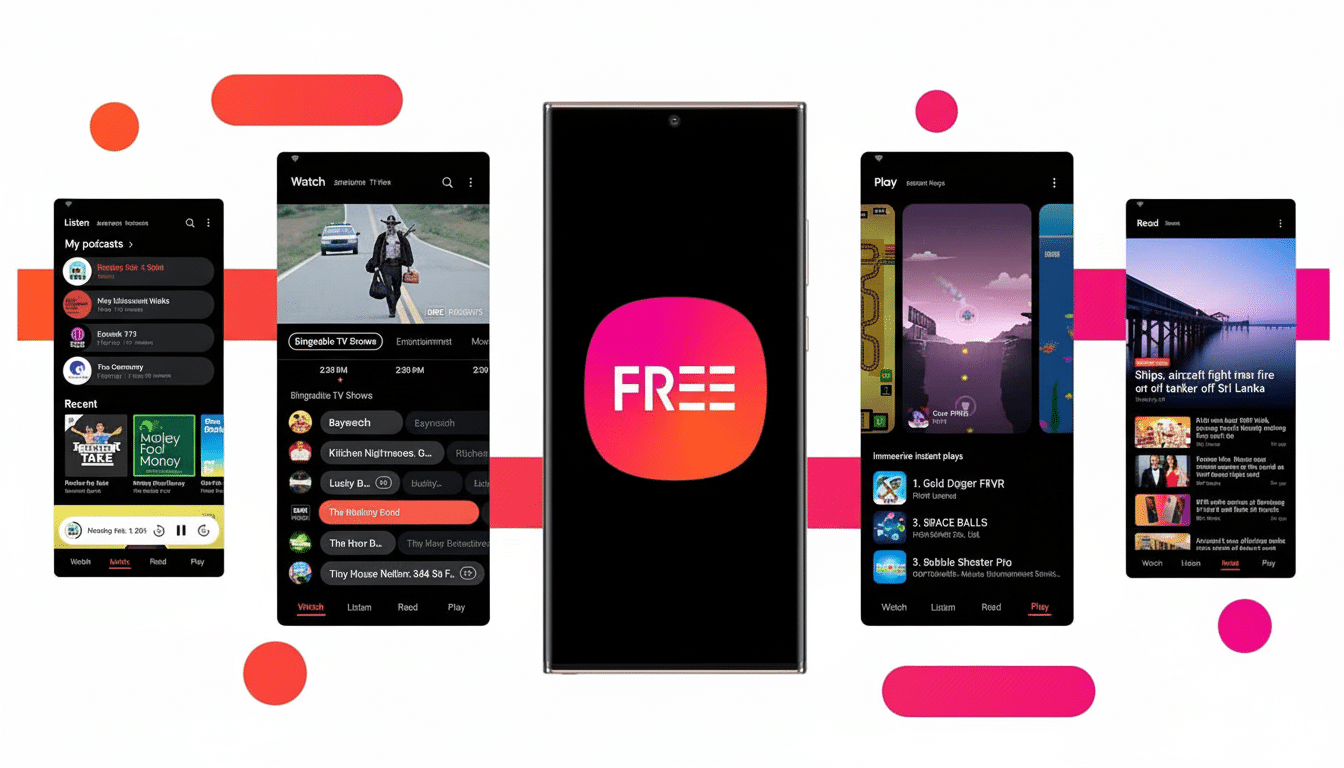
Samsung Free or Samsung News: Disable the leftmost panel
That leftmost home screen panel becomes a mash-up of streaming news, podcasts, and casual games. It competes with Google Discover and Samsung TV Plus, and a lot of people never consciously open it. If you prefer to get your news in a specific browser or through other aggregators, swiping this panel away ensures you won’t swipe it by accident anymore and ends the constant drip of alerts.
Quick fix: long-press on the home screen, tap Settings, and toggle the Samsung Free/News option to None. To completely turn off the app, head to Settings > Apps > Samsung Free/News and choose Disable.
Samsung TV Plus: When it’s fine to disable the app
The ad-supported streaming service from Samsung provides hundreds of live channels as well as on-demand media, available in over two dozen countries. If you already subscribe to Netflix, Prime Video, or Max and never watch TV on your phone, TV Plus is mainly a way of adding notifications and background data checks that don’t get results; nothing adds up to clear value.
Security and privacy hawks often counsel that, in order to minimize tracking and battery churn, we reduce the number of always-on media apps. Avast’s Android performance reports have repeatedly pinpointed streaming and media apps as some of the worst background resource hogs. If you don’t really use TV Plus to stream directly, turning it off is an easy win.
Go to Settings > Apps > Samsung TV Plus and select Disable. You can always turn it back on in the same menu later.
Samsung Global Goals: Opt out of the charity app
This philanthropy-themed app supports the United Nations Sustainable Development Goals, letting users check changes, donate, or watch ads to contribute. It’s a fine mission, but for most owners the app isn’t necessary and could add notifications and even background tasks that wouldn’t be useful to you.
But if you prefer donating through established nonprofit sites or your browser, then being able to get rid of Global Goals makes more space and declutters. Samsung’s support documents do affirm that it is fine to disable first-party system apps like this.
Samsung Shop: Reduce promos by disabling the app
Consider this your one-stop shop for Samsung deals, trade-ins, and accessories. For the few of us who follow launches, it’s useful, but for most people it amounts to an irrigation system for promos and flash sales. General-interest retail apps often are among the top sources of marketing alerts, according to surveys conducted for the mobile-marketing industry, eroding users’ focus and battery life.

Because all deals are on the web, getting rid of the app reduces noise without losing access to sales. Go to Settings > Apps > Samsung Shop and hit Uninstall or Disable.
Samsung Kids: Disable if you never share your phone
Samsung Kids delivers a restricted-access kids’ environment with curated content, time limits, and usage reporting. It is a great tool for parents — but needless if you don’t share your phone with children. Because it integrates itself so deeply into One UI with its own launcher space and notifications, it’s actually worth disabling if you never use it.
To delete this from your quick panel and app list, go to Menu > Settings > Apps > Samsung Kids and Disable. You can even conceal its toggle from the quick settings editor to avoid unintentionally turning it on.
Uninstall or disable Samsung apps safely in One UI
For example, you can long-press any app icon and then tap Uninstall or Disable to get the job done as quickly as possible. For a more comprehensive sweep, visit Settings > Apps, tap the three-dot menu to Show System Apps, and peruse the list. If Uninstall is not available, choose Disable, and it will be removed from the launcher and stop background activity.
To re-enable a disabled app, you can go back to Settings > Apps, sort by Disabled, and tap Enable. This can protect users all around, and cleaning is safely reversible even for the cautious user.
What you gain after cleanup: space, focus, and battery
Unlocking recent Galaxies, I typically regained a few hundred megabytes just by trashing the five apps above, and a number of users reported seeing fewer lock screen banners and fewer accidental swipes. Community testing on places like XDA Developers suggests there are indeed modest, but consistent improvements to standby drain once your device is freed from dormant media and shopping apps.
Even more critical than dumb storage is attention and power management. Data.ai says that most people use fewer than a dozen apps each day; having only what you need minimizes notification load, background syncs, and the possibility of privacy-unfriendly tracking. If you need them again in the future, it takes a few seconds to re-enable or reinstall.
Bottom line: One UI is at its best when it mirrors your behavior. If you don’t use Samsung Free or News, Samsung TV Plus, Global Goals, Samsung Shop, and Samsung Kids on your lock screen, your phone will be leaner, less noisy-feeling, and more responsive — without regret.