


Mozilla is rolling out a simple way to opt out of artificial intelligence inside its browser. With Firefox 148, a new AI Controls panel introduces a master toggle that shuts off the browser’s built-in AI in one move, reflecting a clear response to users who asked for straightforward, durable control over these features.
What changed in Firefox 148: centralized AI controls
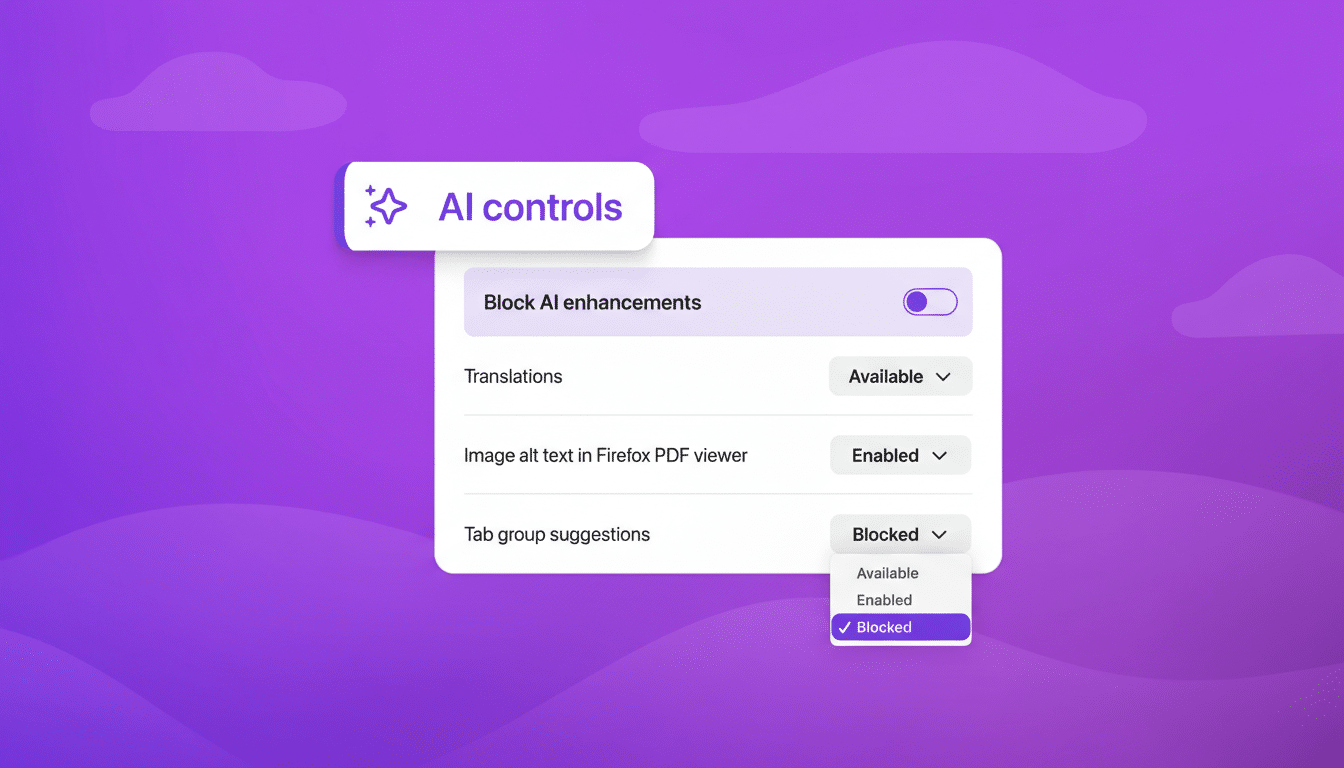
Firefox 148 adds a centralized AI Controls section in Settings. Instead of hunting through separate menus, you can now find every built-in AI capability in one place and turn them all off at once. Mozilla executives have framed this as a choice-first approach, emphasizing that people should retain control as AI tools become more visible in everyday browsing.
- What changed in Firefox 148: centralized AI controls
- How to turn off Firefox AI in one step using AI Controls
- What the browser-wide AI toggle disables in Firefox
- Why it matters for privacy and performance
- How it compares to other browsers’ AI controls
- Enterprise and power users: policies and profiles
- Troubleshooting and availability for Firefox 148 AI
- Bottom line: Firefox adds a single switch to disable AI
The move arrives as every major browser layers in assistants and summarizers. Edge pushes Copilot, Chrome is piloting Gemini-powered features, Opera bundles Aria, and Safari has announced Apple Intelligence for select devices. Firefox’s change is less about adding more AI and more about making the off switch unmissable.
How to turn off Firefox AI in one step using AI Controls
Here’s the quick path:
- Open Firefox.
- Go to Settings.
- Find the AI Controls section.
- Flip the master switch to Off.
That’s it. Your preference is persistent, so future updates will respect the setting without asking you again.
If you prefer a la carte control, the same panel lets you disable individual features while leaving others on. But for anyone who wants Firefox to behave like it did before AI landed, the global toggle is the fastest route.
What the browser-wide AI toggle disables in Firefox
The switch targets Firefox’s built-in AI experiences, including:
- The sidebar chatbot
- Page summaries
- Translation features
- AI-generated image descriptions in the PDF viewer
- Tab group suggestions
- Key point previews on links
Turning the switch off hides or disables these tools and prevents them from running in the background.
It does not automatically disable third-party extensions you have installed. If you’ve added separate AI add-ons, manage those from the Add-ons Manager. The AI Controls panel is about Mozilla’s own features, not the broader extension ecosystem.
Why it matters for privacy and performance
Firefox’s user base includes a sizable contingent that prioritizes privacy and minimal background activity. Advocacy groups such as the Electronic Frontier Foundation have long argued for clear consent and granular control for any data-connected features. By defaulting to explicit choice, Mozilla reduces surprise data flows and gives cautious users an easy out.

There are practical gains, too. AI features can add CPU and memory overhead, especially on lower-end hardware. For laptop users, fewer background processes typically translate to better battery life. With StatCounter estimating Firefox’s global share at roughly 3% across platforms, keeping that core audience satisfied may be as important as chasing new features.
How it compares to other browsers’ AI controls
Edge allows disabling Copilot panes and prompts, Chrome exposes Gemini-related controls behind settings and flags, and Opera lets you turn off Aria. Apple is taking a more gated approach, with Apple Intelligence rolling out on a narrower set of devices and emphasizing on-device processing. Firefox’s contribution is clarity: a plainly labeled, single master switch that non-experts can find without a tutorial.
The consistency matters. Security professionals often warn that scattered toggles lead to partial opt-outs and residual activity. Centralization reduces that risk and makes it easier to audit what’s on and what’s off.
Enterprise and power users: policies and profiles
Organizations managing Firefox at scale can expect policy-level controls aligned with the new AI settings. Mozilla’s enterprise policy framework already lets admins enforce defaults and lock prefs via policies.json and group policy templates. A dedicated policy to disable built-in AI across fleets will simplify compliance for regulated environments.
For power users who maintain multiple profiles, the AI Controls setting is profile-specific. If you juggle work and personal profiles, set your preference in each to ensure consistent behavior.
Troubleshooting and availability for Firefox 148 AI
If you do not see AI Controls, confirm you’re running Firefox 148 or later and check again after updating. Feature rollouts can stagger between Nightly, Beta, and Stable channels. Using the Settings search for “AI” is the quickest way to locate the panel once your build includes it.
Mozilla says the AI preference is durable across updates, so you should not need to revisit it after upgrading. If you reset your profile or move to a new device, simply repeat the one-step toggle to restore your preference.
Bottom line: Firefox adds a single switch to disable AI
Firefox 148 puts a clear, single switch at the center of its AI story. Whether you want all the new helpers or none of them, the choice now takes seconds—and it sticks. That is the kind of control users have been asking for, and Mozilla finally delivered it.