


If you own a Motorola phone, there are some lesser-known tweaks under the hood that can make battery anxiety a thing of the past.
These are Android’s power tools, yes, but Motorola layers in smart extras that really do matter, even at the low end of the G series and up through Razr foldables.
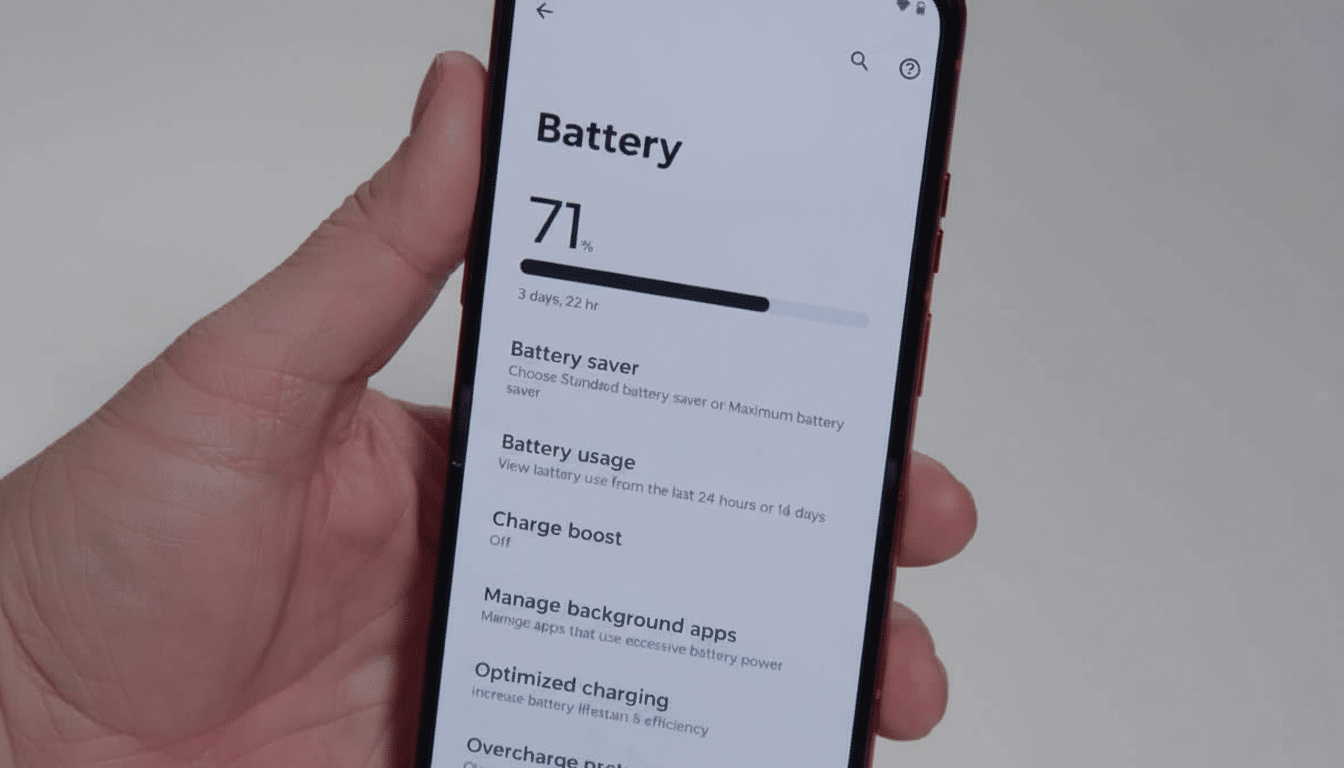
- Strategically use battery saver modes for longer life
- Turn on Adaptive Battery to limit seldom‑used apps
- Let Adaptive Brightness learn your habits to save power
- Right‑size your refresh rate to balance smoothness and life
- Reduce Screen Timeout And Disable Attentive Display
- Get It in Dark Mode With a Black Wallpaper
- Turn off Mobile Data Always Active to reduce idle drain
- Turn On Optimized Charging for Battery Health
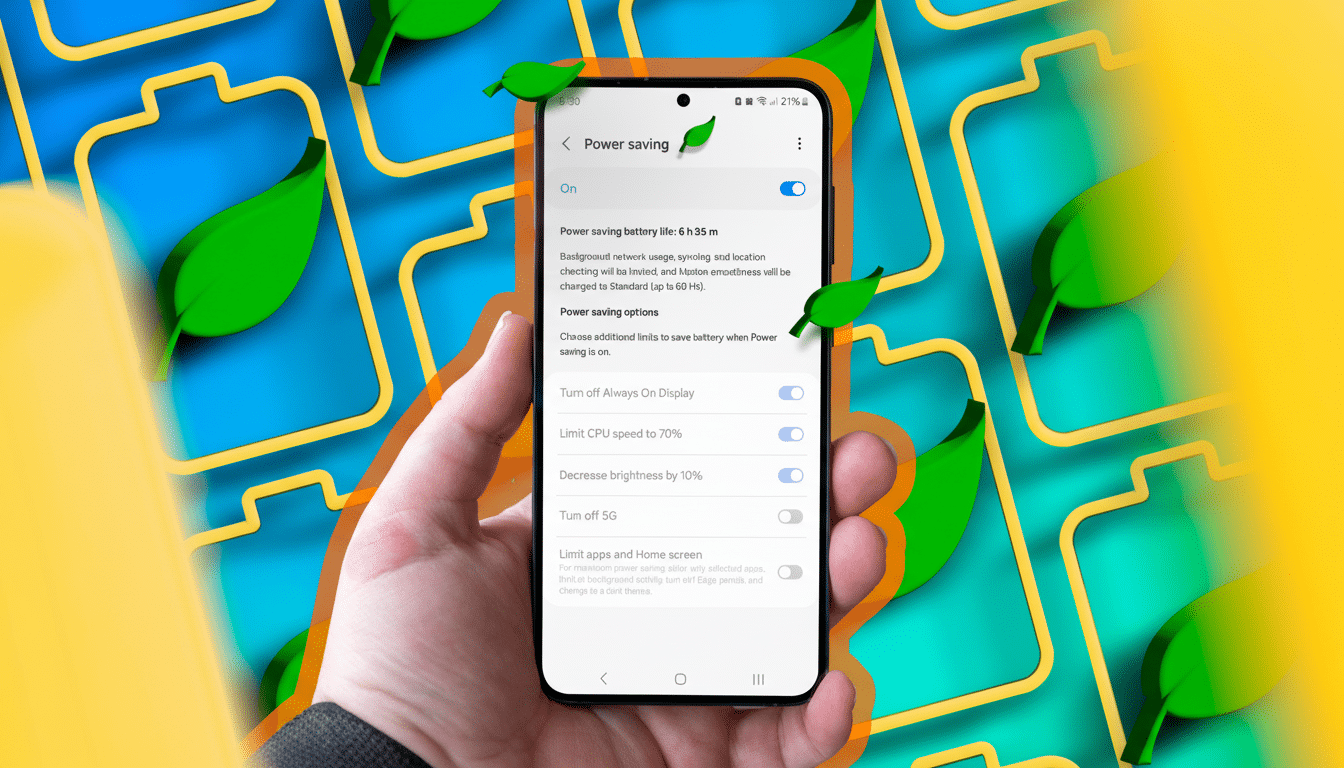
The worst offenders, too, are predictable — display brightness and refresh rate, background activity, and always-on cellular radios. Tweak how your phone manages them and you can add hours of real-world runtime without compromising the features that matter most to you. Here are the eight settings with the best results.
Strategically use battery saver modes for longer life
Motorola provides two levels: Standard Battery Saver and Maximum Battery Saver. Standard dims the interface and limits background tasks when your phone is charging, while Maximum takes things a step further by controlling 5G connections, live wallpapers, and some motion gestures (Moto Actions). For travel days or events, scheduling Maximum is often the difference between ending with a full charge and searching for an outlet.
Open Settings > Battery > Battery Saver to switch between Standard and Maximum with a tap, and establish an automatic trigger level in Schedule.
Whitelist mission-critical apps to keep messages and navigation reliable.
Turn on Adaptive Battery to limit seldom‑used apps
Powered by Android’s on-device machine learning and App Standby Buckets, the Adaptive Battery feature restricts memory usage for apps rarely used so that they no longer wake up the CPU or ping the network. The Android team over at Google designed this to learn your habits as time passes, so the benefit is compounded over a period of days, when barely tapped apps are throttled.
Head to Settings > Battery > Adaptive Battery and turn it on. Look for fewer wakelocks as well as more consistent overnight drain.
Let Adaptive Brightness learn your habits to save power
Displays are almost always the top line in Android’s battery stats. Adaptive Brightness uses the ambient light sensor and your manual adjustments to guess perfect levels on a room-to-room basis. It’ll take a week to train it; both your eyes and battery prevail.
Turn it on with Settings > Display > Adaptive Brightness. Brightness has an overwhelming impact on battery life, as testing by display reviewers and analysts always find, so this is one setting applicable to many users.
Right‑size your refresh rate to balance smoothness and life
High-refresh panels feel buttery, but they consume energy. Independent measurements by AnandTech and GSMArena confirm that stepping up from 60Hz to 90/120Hz can increase display power draw by around 10%–20%, while knocking an hour or two off screen-on time depending on brightness and content. The difference is even starker on models like the Razr that step up to 144Hz or 165Hz.
Go to Settings > Display > Display Refresh Rate and pick Efficiency First (60Hz) for days on the road, or Smart/Balanced (frequently 120Hz) if you’re straddling the two extremes. The difference will feel slight in email and messaging, but you’ll notice the battery bar.
Reduce Screen Timeout And Disable Attentive Display
While the screen is off it’s not draining. Your Screen Timeout can be dropped to 30 seconds — or as low as 15 when you’re stretching a charge — via Settings > Display > Screen timeout. It’s a small adjustment, but it can save dozens of wasted screen minutes per day.
Leave Attentive Display off. Constantly monitoring the selfie camera to prevent the screen from turning off is a bit lazy, but it takes extra power while keeping the sensor and helper processes active.
Get It in Dark Mode With a Black Wallpaper
Black pixels on OLED panels consume almost no power. Demos during Google’s Android Dev Summit proved that dark themes can extend battery life by 50% at 100% brightness. Switch to a system-wide dark theme and pair it with a pure-black wallpaper to make maximum savings in menus and always-on backgrounds.
Visit Settings > Personalize > Dark Mode and select Dark, then go with a black wallpaper. The gain varies by brightness and app, but it’s one of the easiest tweaks you can make that will stay in place down the road.
Turn off Mobile Data Always Active to reduce idle drain
Android, by design, powers the cellular modem even when you’re on Wi‑Fi to make handoff quick. That standby mode draws a small but steady stream of power — tens of milliwatts, engineers sometimes call it — and it adds up over hours.
Here’s how to turn it off: First you need to enable Developer Mode: Settings > About phone, tap Build number seven times. Then navigate to Settings > System > Developer options and toggle off Mobile data always active. You may see a half‑second lag when leaving Wi‑Fi, but you’ll recapture some idle battery.
Turn On Optimized Charging for Battery Health
Maintaining lithium‑ion cells at 100% for long stretches hastens wear. Battery University as well as academic research on Li‑ion chemistry all report that lower average states of charge lead to longer lifetime. Motorola’s Optimized Charging adapts to your routine, pausing overnight around 80% and timing the top‑up before you wake.
Turn it on in Settings > Battery > Optimized Charging. You won’t see much of a difference in daily runtime at first, but months after the fact, your battery should have more of its original capacity — that is to say, longer life per charge and a phone you can keep for longer.
None of those switches involve sacrifices that render your phone feeling hobbled. But overall, they line up with what the experts at Google, the practically minded chipset manufacturers, and various independent labs have been showing for years: Control your screen, tame background activity, and manage radios, and on every charge of your Motorola’s battery it will run conspicuously longer.