


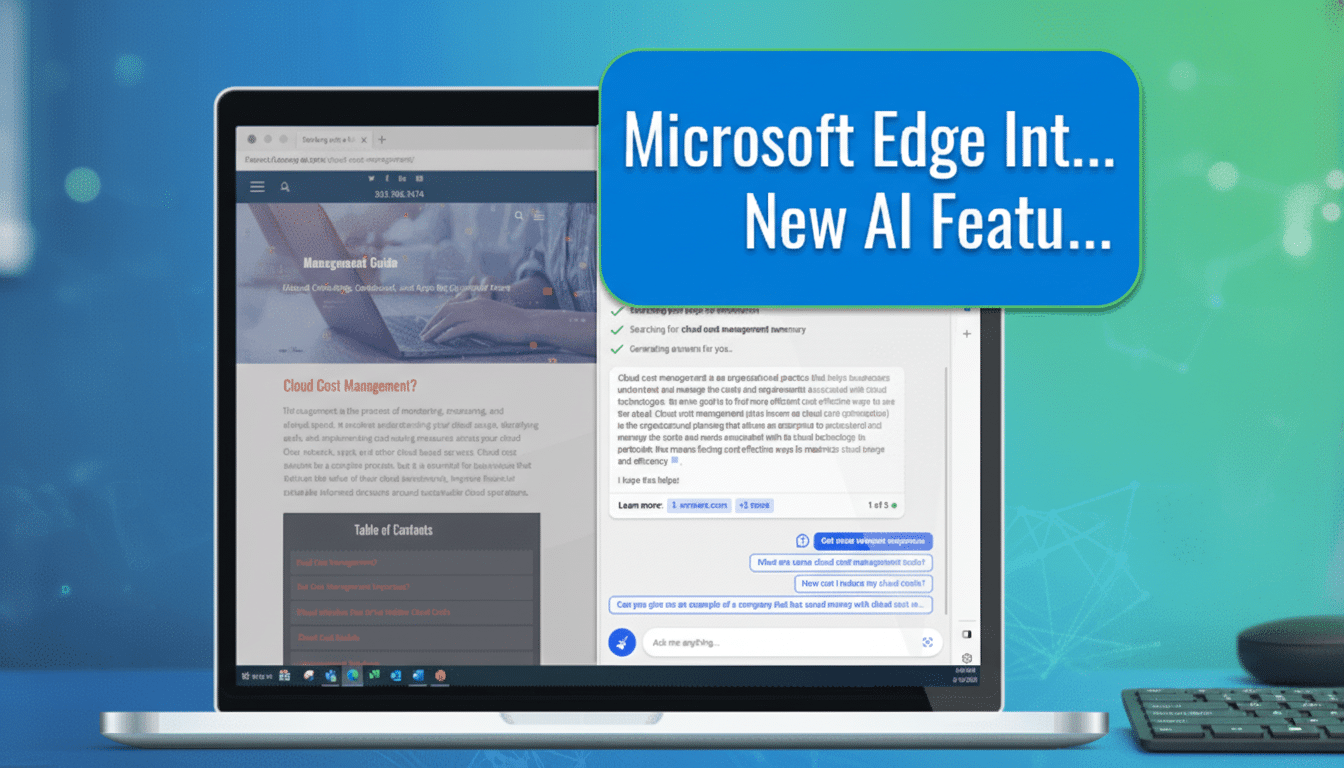
Microsoft Edge just picked up a genuinely useful upgrade: built-in Copilot assistance for PDFs that summarizes, explains, and answers questions right inside the browser. It’s the kind of everyday AI utility that saves real time, especially when you’re staring down a dense report, a contract, or a scanned manual. And for now, Chrome and Firefox don’t offer a native equivalent in their PDF viewers.
The feature lives in Edge’s standard PDF interface, so you don’t need to install an extension, open another app, or copy-paste text. You click once, ask a question, and get context-aware answers grounded in the document you have open.

What the New Copilot PDF Skill Does in Microsoft Edge
Open any PDF in Edge and tap the Ask Copilot icon in the toolbar. You’ll see options to Summarize (a concise overview of key points) or Explain (a plain-language breakdown). From there, you can chat with Copilot about the file: ask for definitions, compare sections, extract action items, or request page-cited bullet points.
In testing, Copilot didn’t stop at a one-size-fits-all abstract. It suggested alternate formats—shorter summaries, study guides, checklists, or personalized action plans—tailored to the content and your prompt. For long PDFs, that flexibility turns a static document into a navigable, searchable conversation.
How to Try It in Edge Right Now on Your PC
- Update Edge. Open the menu, go to Help and Feedback, then About Microsoft Edge. Let the update install and relaunch. Look for version 145.0.3800.58 or newer.
- Open your PDF. You can load one from the web or from your computer. If Edge isn’t your default PDF app, right‑click the file in File Explorer, choose Open With, and pick Microsoft Edge.
- Click Ask Copilot in the PDF toolbar. Choose Summarize or Explain to get an instant readout in the right panel.
- Ask follow-up questions. Try prompts like “List the key recommendations with page numbers,” “Explain section three in simpler terms,” or “Create a checklist of next steps.” Copilot can reference parts of the PDF so you can verify each claim.
Pro tip: If the PDF is a scan without selectable text, Copilot will attempt OCR. Results can vary with image quality, so ask it to cite pages and double-check the original when accuracy is critical.
How It Compares To Chrome And Other Options
Chrome and Firefox include capable PDF viewers, but neither ships a native, one‑click AI summary or Q&A in the viewer itself. You can approximate this with third-party extensions or by using a separate chatbot, but that adds friction and may lose document context. Edge’s integration is the difference between “switching tools” and “staying in flow.”
This matters because Chrome currently accounts for about 66% of global browser usage, while Edge hovers near the low teens on desktop, according to StatCounter. A deeply practical feature like AI PDF help gives Edge a credible everyday advantage—especially for students, analysts, and anyone living in contract and compliance work.
There are alternatives if you prefer dedicated tools. Adobe’s Acrobat AI Assistant can summarize and even transform PDFs into presentations. Google’s ecosystem also offers document understanding features in its AI services. But those solutions live outside the default browser viewer, while Edge brings the capability to where most people already read PDFs.
Accuracy, Privacy, And When To Be Careful
As with any AI assistant, treat outputs as a starting point, not the final word. Ask Copilot to point to page numbers or quote exact sentences when you need verification. For legal, medical, or technical documents, always confirm details against the original text.
Copilot may process document content in the cloud to generate answers. If you work with sensitive files, review Edge’s privacy settings and your organization’s data policies. Edge for Business includes administrative controls that can govern access to page content and AI features.
Power Prompts That Work Well with Edge’s PDF Copilot
- “Summarize this PDF in five bullets with page citations.”
- “Explain the key risks and mitigation steps in simple terms.”
- “Create a study guide with sections, definitions, and examples.”
- “Extract all deadlines and deliverables with dates and responsible parties.”
- “Draft an action plan based on this report’s recommendations and split it into immediate, 30‑day, and 90‑day tasks.”
Bottom line: why Edge’s built-in PDF Copilot matters
Edge’s Copilot for PDFs turns passive reading into an interactive briefing without leaving the browser. If you regularly wrangle sprawling documents, this is an upgrade you can use today—and a smart reason to give Edge another look, even if Chrome has been your default.