


Microsoft has slipped four new Copilot skills right into File Explorer — and they’re all all about making life easier for people who spend time in OneDrive. With a right-click, you can summarize a file, ask questions on it, auto-generate an FAQ or compare five different documents side by side. The result: Fewer browser detours, less context-switching, and quicker answers when you’re knee-deep in project folders.
What’s new in File Explorer
The new options will surface when you right-click a supported OneDrive file in File Explorer. For Windows 10, the commands are right there in the menu. In Windows 11, simply hover on the OneDrive entry in the context menu to get the options.
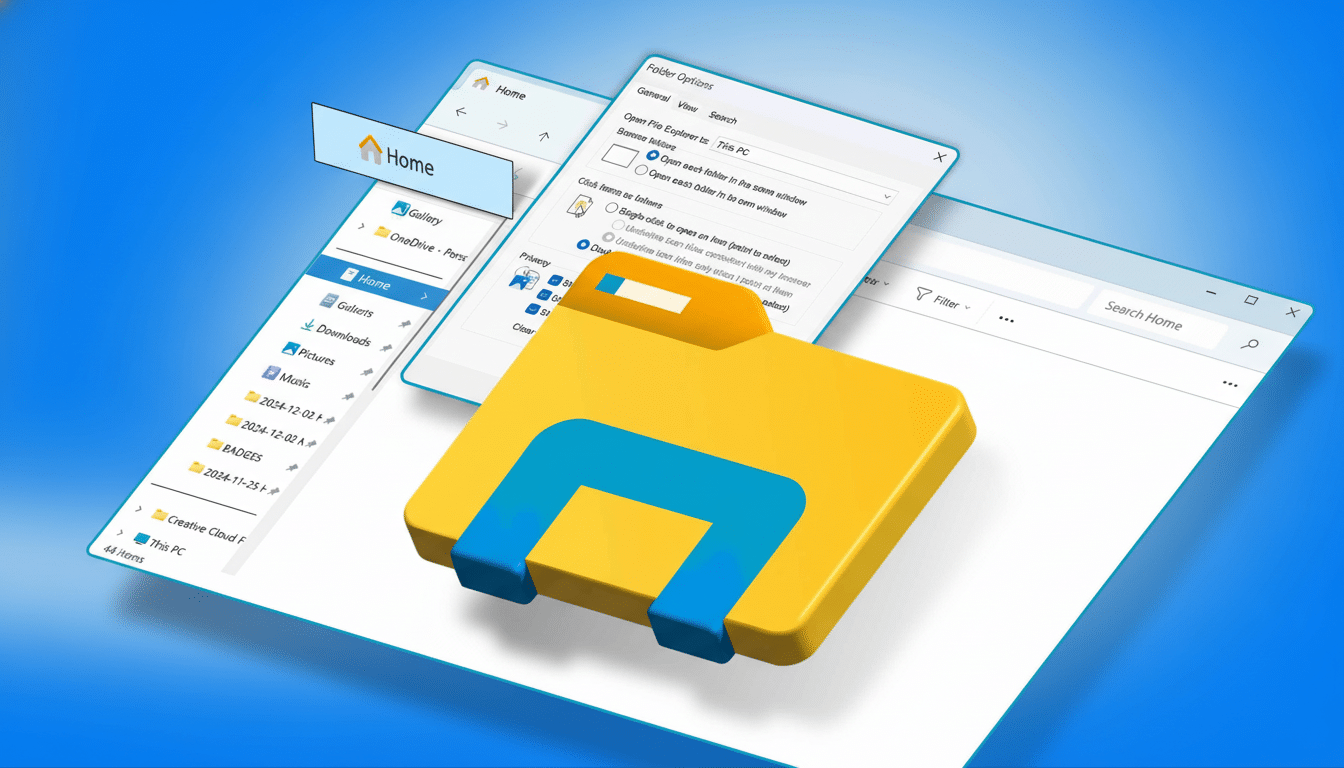
Here’s what Copilot can do from that menu: Summarize a document, answer natural-language questions about it, generate a draft of a FAQ, and compare five files for similarities and differences. The experience is powered by OneDrive on the web in the background, but you start from the desktop where you’re working in the first place.
Why it’s important for OneDrive users
Knowledge work is frequently a scavenger hunt. McKinsey has calculated that workers spend an average of a fifth of their time collecting and sifting through information. By putting Copilot directly in File Explorer, Microsoft removes the friction of opening a browser tab, navigating to the right site and uploading a file — saving minutes that add up over a day.
Real-world examples include: A sales manager should quickly be able to compare five proposals to identify scope changes; an HR lead should be able to transform a policy document into a quick FAQ to perform onboarding; a finance analyst can say to a quarterly report (that would have been hard to go over or read the 60 slides) to pull out revenue deltas and cost drivers.
Requirements before you start
You’ll need a Microsoft 365 Family or Personal subscription and be signed in to OneDrive in Windows. Files need to be saved in OneDrive and show up in File Explorer. Good thing there is internet connection because the analysis occurs online not in your PC but it relies on OneDrive.
Confirm that you are using the latest version of Windows 10 or 11, and that the OneDrive sync client is running. If you don’t see the Copilot entries in the context menu, restart OneDrive, or sign out and back in using the account associated with your Microsoft 365 subscription.
How to test out the new Copilot skills
Open File Explorer and go to a OneDrive folder. Right-click a supported file. In Windows 11, a Copilot options menu should appear upon hovering over the OneDrive menu in the context options; in Windows 10, you should see the Dashboard options there in the open. Select Summarize to extract main ideas, Questions to ask the question most likely to be answered, or Generate FAQ to generate the Q&A section from the document.
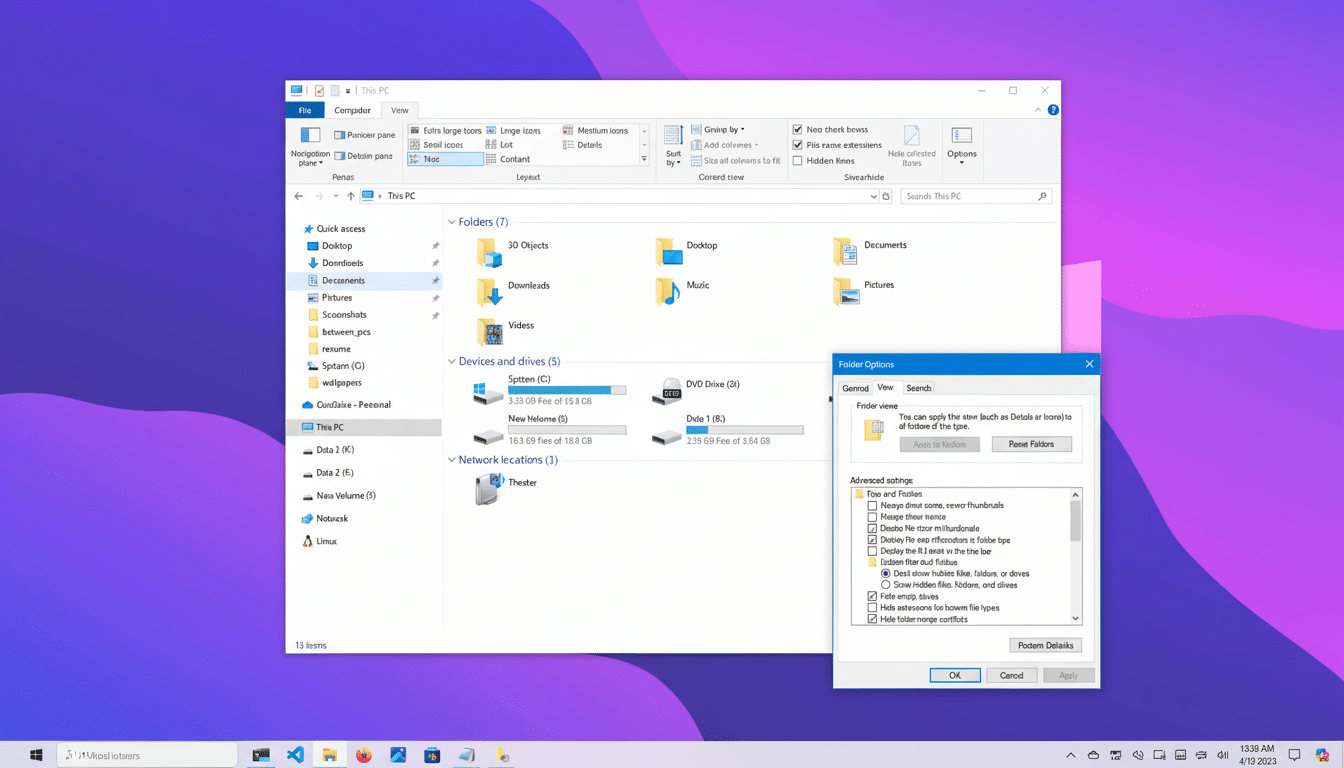
Select up to five documents to be compared side by side, right-click, and select Compare in Copilot to compare files. You’ll be presented with an amalgam that highlights overlaps and distinctions — handy to note for version drift or aligning drafts from more than a writer or two.
File types supported (and not)
Copilot is compatible with Microsoft 365 files (DOC, DOCX, PPT, PPTX, XLSX, FLUID, LOOP), generic text files (PDF, TXT, RTF), web files (HTM, HTML) and OpenDocument formats ODT and ODP). Media files such as photos and videos aren’t yet supported, so image-heavy projects will require traditional tools or separate transcription/vision workflows.
Pro tips, privacy, and performance
Your OneDrive permissions and sharing settings still apply since the processing takes place in OneDrive. For shared folders, Copilot will only process what your account has access to. If your file has not yet fully synced, wait until the OneDrive checkmark appears before calling Copilot to prevent any errors.
You can expect good results with well-structured documents that contain headings, tables or clear sections. For spreadsheets, Copilot can summarize sheets and flag trends, but it’s not going to execute complex macros or make external connections; think of it as an analysis layer, not a calculation engine.
Who benefits most
Students putting together research packets, freelancers juggling client briefs, and small teams iterating proposals will suffer, perhaps most of all. For bigger enterprises, this is also a sneak peek of how file-centric AI will manifest itself into everyday workflows, which aligns with findings from Microsoft’s Work Trend Index that workers want help right where they are working, and not within other apps.
Bottom line
These File Explorer shortcuts don’t reinvent Copilot, but they do put it in its proper place: Right alongside the rest of your files. (Note: If you keep work in OneDrive and are on a Microsoft 365 Family or Personal plan, they’re already turned on, and you can start saving time the next time you confront a folder full of drafts.)