


Google has unveiled three productivity upgrades for Chrome that zero in on everyday tasks rather than AI flash: a built-in split view for tabs, automatic PDF saving to Google Drive, and enhanced PDF annotations and signatures. The trio is rolling out in the latest Chrome release and is designed to cut friction for people who live in the browser all day.
While recent Chrome updates have leaned heavily on AI assistants, this round focuses on fundamentals like multitasking, document access, and form completion. For millions of students, knowledge workers, and developers, these are the knobs and dials that actually move the needle.
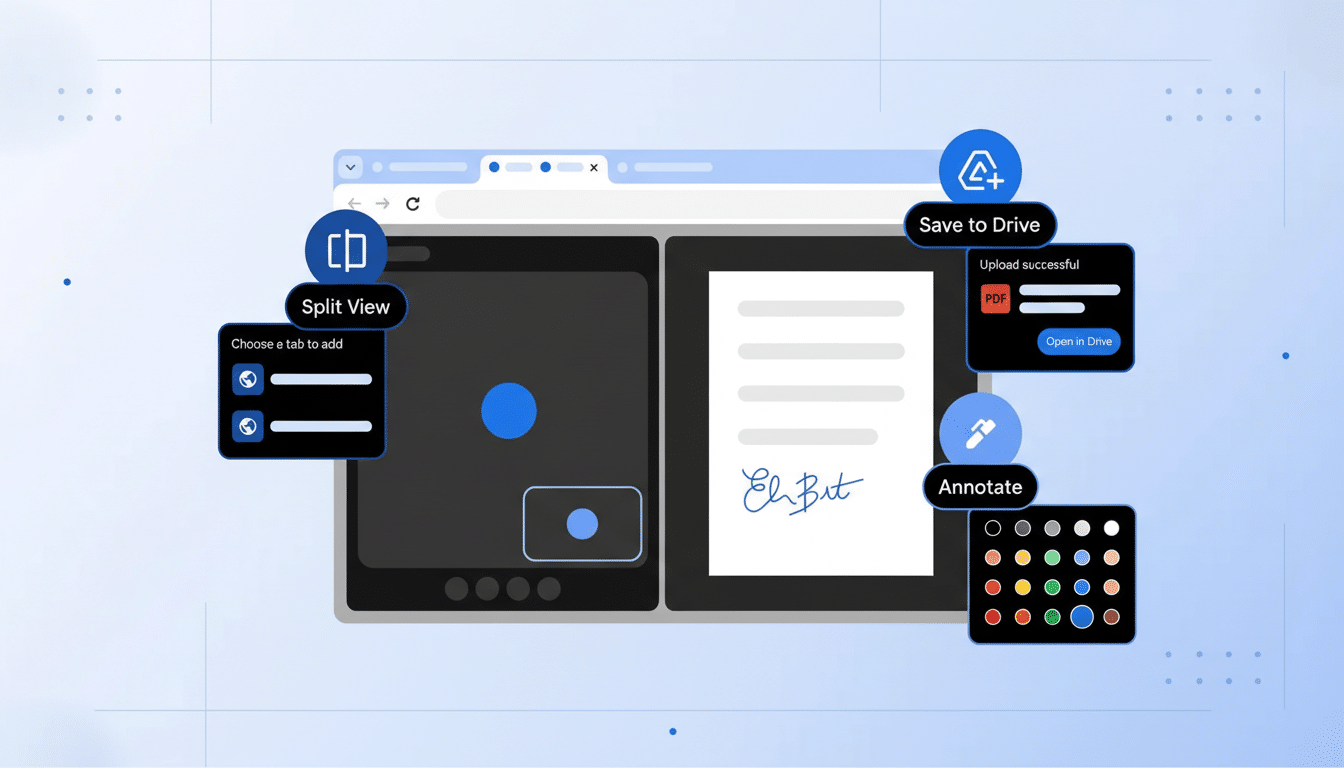
Split View For Tabs Arrives In Chrome Browser
Chrome’s new split view mode lets you pin two tabs side by side in a single window, complete with a draggable divider to resize either pane. You can activate it by dragging a tab to the left or right edge of the browser window or by right-clicking a link and choosing Open Link in Split View. Unlike OS-level snapping on Windows or macOS, this keeps your focus inside one Chrome window and your tab bar intact.
This is a quality-of-life upgrade with measurable upside. Research from the University of California, Irvine on digital multitasking has shown that frequent context switching erodes focus and adds reorientation time. Keeping two key tabs visible—say, a lecture video and your notes, or an API doc and your code sandbox—reduces that switching tax. For anyone who keeps dozens of tabs open, the ability to pair the two that matter most at any moment is a subtle but powerful shift.
PDFs Now Save To Google Drive Automatically
Chrome will now auto-save downloaded PDFs to a Saved from Chrome folder in Google Drive. That means the file you grabbed on your laptop is instantly available from your phone or another desktop—without digging through the Downloads folder, renaming, or emailing it to yourself. It also adds the backup and search benefits of Drive to the routine PDFs we all accumulate.
For organizations standardized on Google Workspace—which Google says serves billions of users—this streamlines handoffs and record-keeping. Admins get centralized storage and audit trails; employees get less hassle. Just note your Drive storage limits and retention policies, especially if your team downloads large reports, scanned contracts, or presentations as PDFs.
Built-In PDF Notes And Quick Signatures Tools
Chrome’s PDF viewer now does more than display pages. You can type directly into forms, add notes and highlights, and capture quick signatures without launching a separate app. It’s ideal for course syllabi, HR paperwork, expense forms, or marking up a report draft before sending it back to a colleague.
Think of this as the 80-20 toolkit: fast annotations and basic e-signing for the majority of tasks. For regulated agreements that require advanced cryptographic signatures or detailed audit logs, dedicated e-sign services remain the right fit. But for the constant flow of everyday PDFs, native tools inside the browser remove clicks and confusion.
How To Use The New Tools In The Latest Chrome
Update to the latest stable version of Chrome, then try split view by dragging a tab to the browser’s left or right edge, or by right-clicking any link and choosing Open Link in Split View. Resize the divider to prioritize the pane you need most; Chrome remembers the arrangement as you work.
For PDFs, sign in to your Google account in Chrome. When you download a PDF, it will be copied to Drive under Saved from Chrome, where it’s searchable and available across devices. Open PDFs in Chrome to fill fields, add notes, or insert a signature directly in the viewer before saving or sharing.
Why The Upgrades Matter For Everyday Chrome Users
Chrome remains the dominant browser on desktop, with independent analyses from StatCounter placing its global share near two-thirds. Small usability wins at this scale translate into outsized impact on how people work, study, and browse. Crucially, these updates address core workflows without adding cognitive load or new interfaces to learn.
In a cycle where AI often steals the spotlight, Google’s decision to refine the basics is notable. Less tab toggling, simpler file retrieval, and frictionless PDF handling are the kinds of improvements that show up in daily muscle memory—and, over time, in productivity metrics that matter.