


Look closely at your laptop or desktop and you’ll spot it: a blue USB-A port tucked among the others. That color is more than a design flourish. In most PCs, blue is the industry’s shorthand for SuperSpeed USB—shorthand that can make the difference between sluggish transfers and snappy performance.
Here’s the straight answer. A blue USB-A port almost always indicates a USB 3 port capable of up to 5 Gbps, the spec originally known as USB 3.0 and later rebranded by the USB Implementers Forum (USB-IF) as USB 3.2 Gen 1. If you’re plugging in an external SSD, fast flash drive, or high-bitrate webcam, that blue port is the one you want.
What Blue Actually Means for USB-A Port Speeds
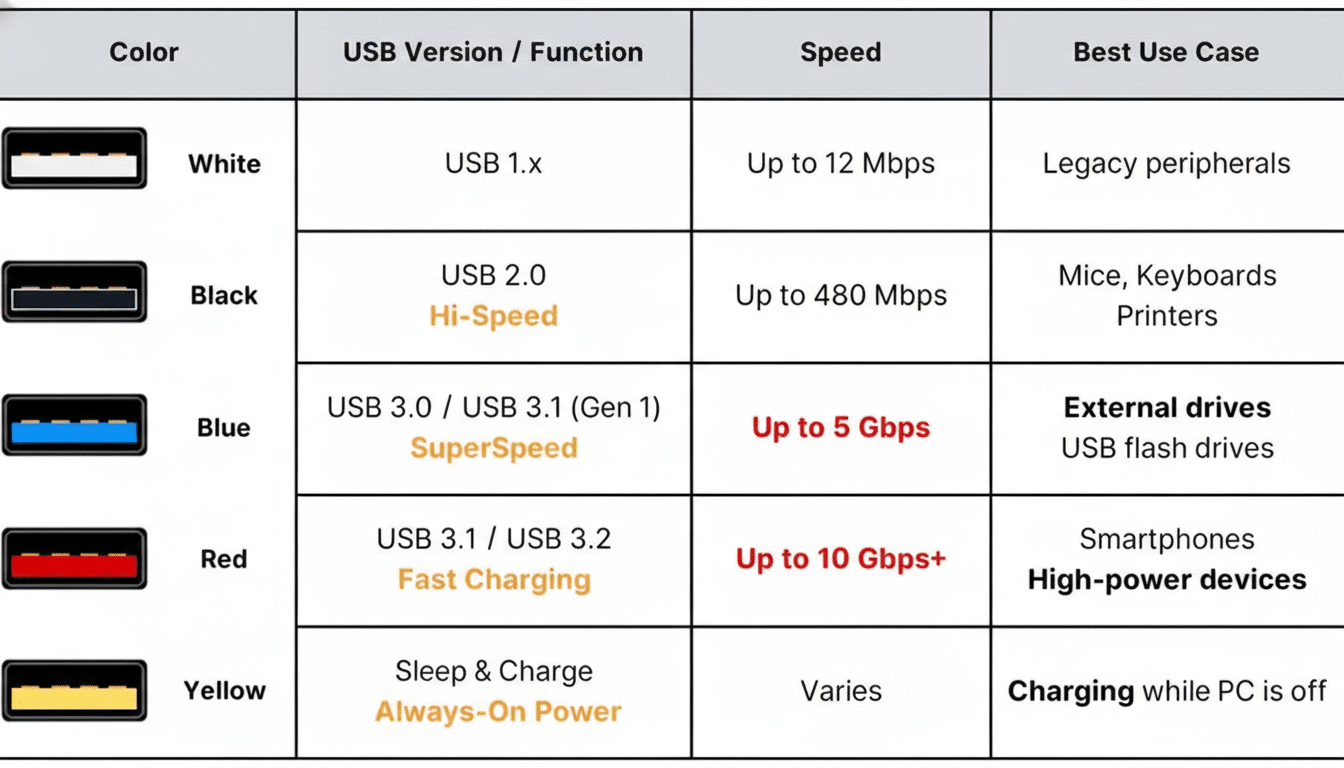
Blue on a USB-A receptacle typically denotes SuperSpeed support at 5 Gbps. In practical terms, that’s about 400–500 MB/s of real-world throughput with a good drive—roughly 10x faster than the older USB 2.0 ports that top out at 480 Mbps. The port may also carry the “SS” (for SuperSpeed) logo, sometimes with a “5” to indicate 5 Gbps capability.
That extra bandwidth matters. A modern portable SSD can saturate a USB 3 link, while the same drive on a USB 2.0 port will crawl at spinning hard drive speeds. Even tasks like importing photos, backing up a phone, or driving a 1080p webcam are noticeably smoother over blue-labeled USB 3.
USB Port Color Code Myths and the Real Story
Here’s the twist most people miss. The USB-IF does not mandate port colors. It standardizes logos and speeds, not paint. Blue for USB 3 is a widespread convention—especially on motherboards and business laptops—but manufacturers can skip colors entirely for aesthetic or cost reasons. When in doubt, the printed markings and the spec sheet beat the hue.
The USB-IF’s guidance focuses on clear labeling such as SS, SS 10, SS 20, or USB4, and on certification rather than cosmetic cues. That’s important because as USB generations multiplied, colors got less reliable while icons and text labels improved. If you do not see blue, look for the SS logo, a small “10” or “20” next to it, or device documentation.
Bottom line: blue usually equals 5 Gbps USB 3, but the authoritative answer is always on the chassis markings and in the product manual.
Other USB Port Colors Decoded and What They Imply
Black ports generally indicate USB 2.0 at 480 Mbps. They’re perfect for keyboards, mice, and printers that don’t benefit from higher speeds. Some very old hardware used white for USB 1.1, which is vanishingly rare today.
Teal or turquoise is commonly used by desktop boards and some laptops to flag higher-speed USB 3.1/3.2 Gen 2 at 10 Gbps. That’s roughly 800–1,000 MB/s practical throughput, ideal for faster SSDs and 10 Gbps network adapters. A few vendors also use red for 10 Gbps ports, which can be confusing because red sometimes signals high-power charging.
Yellow, orange, and sometimes red USB-A ports are often “always-on” charging ports. These can supply power even when the laptop is sleeping or off, frequently supporting Battery Charging (BC 1.2) up to 1.5A and, on some systems, proprietary modes up to 2.4A. Check the manual to confirm wattage and whether you can toggle the feature in firmware.
Because these color choices are vendor conventions, not universal rules, confirm capabilities via printed labels or the system manual. Many consumer laptops now omit color entirely while preserving speed.
USB-C and Thunderbolt: How They Differ and Overlap
USB-C rarely relies on colors. Instead, it uses icons. Look for SS 10 or SS 20 for 10 or 20 Gbps, a battery or “PD” indicator for USB Power Delivery charging, and a small display icon for DisplayPort Alt Mode. Two identical-looking USB-C ports on the same laptop can have very different abilities—one might handle charging and video, the other data only.
Thunderbolt ports, identified by a lightning-bolt icon, bundle PCIe, DisplayPort, and USB signaling. Thunderbolt 3 and 4 support 40 Gbps and can drive multiple 4K displays and high-speed storage. USB4, defined by the USB-IF, typically runs at 20 or 40 Gbps and is backward compatible with USB 3 and, in many cases, interoperable with Thunderbolt. The USB-IF has announced USB4 Version 2.0 with up to 80 Gbps and asymmetric modes that can reach 120 Gbps for display-heavy workloads, bringing workstation-class bandwidth to compact systems.
How to Get the Fastest Results from Your USB Ports
Match the device to the port. Plug external SSDs, high-speed card readers, and 2.5GbE or 5GbE adapters into blue USB 3 ports or better. Peripherals that don’t need bandwidth—mice, keyboards, dongles—can live on black USB 2.0 ports without penalty.
Read the fine print. System spec sheets usually list “USB 3.2 Gen 1” for 5 Gbps, “Gen 2” for 10 Gbps, and “Gen 2×2” for 20 Gbps on some Type-C and rare Type-A ports. On USB-C, icons tell the story: PD for charging wattage, DP for video, and SS with a number for data speed. For Thunderbolt, the lightning icon is your green light for 40 Gbps accessories and daisy-chaining docks.
Trust certification. The USB-IF certifies cables and devices, and Intel certifies Thunderbolt products. In real-world testing, certified 10 Gbps and 20 Gbps cables consistently maintain throughput and stability, while no-name cables often fall short. If you need a quick sanity check, a compact USB power or cable tester can tell you whether a cable truly negotiates the speed and power it claims.
The takeaway is simple. Blue means USB 3 speed most of the time, but the smartest move is to pair the right device with the right, clearly labeled port. Do that, and you get the performance you paid for—no guesswork required.