


If your Apple TV has started to stutter, dim, or lag, you don’t need a new box—you need better defaults. After a clean sweep through tvOS settings on an Apple TV 4K, the system felt snappier, menus rendered without black flashes, and Dolby Atmos kicked in reliably. These are practical tweaks, not magic tricks, grounded in how HDMI bandwidth, color formats, and tvOS actually behave.
The Apple TV 4K (3rd gen) runs on Apple’s A15 Bionic, which is more than capable of smooth 4K playback. The bottlenecks usually come from format handshakes, misaligned color spaces, and bloated storage. With the 12 changes below, you can reduce unnecessary HDMI renegotiations, lock in reference-quality video, and make audio intelligible without cranking the volume.
- Set Apple TV video format to 4K SDR for stable menus
- Enable Match Dynamic Range and Frame Rate for accuracy
- Switch chroma to 4:4:4 for crisp UI text, then validate
- Fall back to 4:2:0 chroma for stability on long HDMI runs
- Use YCbCr HDMI output to preserve accurate color and detail
- Run Apple TV Color Balance calibration with a recent iPhone
- Enhance dialogue and reduce loud sounds for clearer speech
- Keep audio format set to Auto to ensure reliable Dolby Atmos
- Silence navigation clicks in the UI for a calmer experience
- Improve focus visibility by enabling the High Contrast style
- Schedule Dark Mode to switch automatically at sunset and sunrise
- Offload unused apps and delete heavy ones to reclaim storage
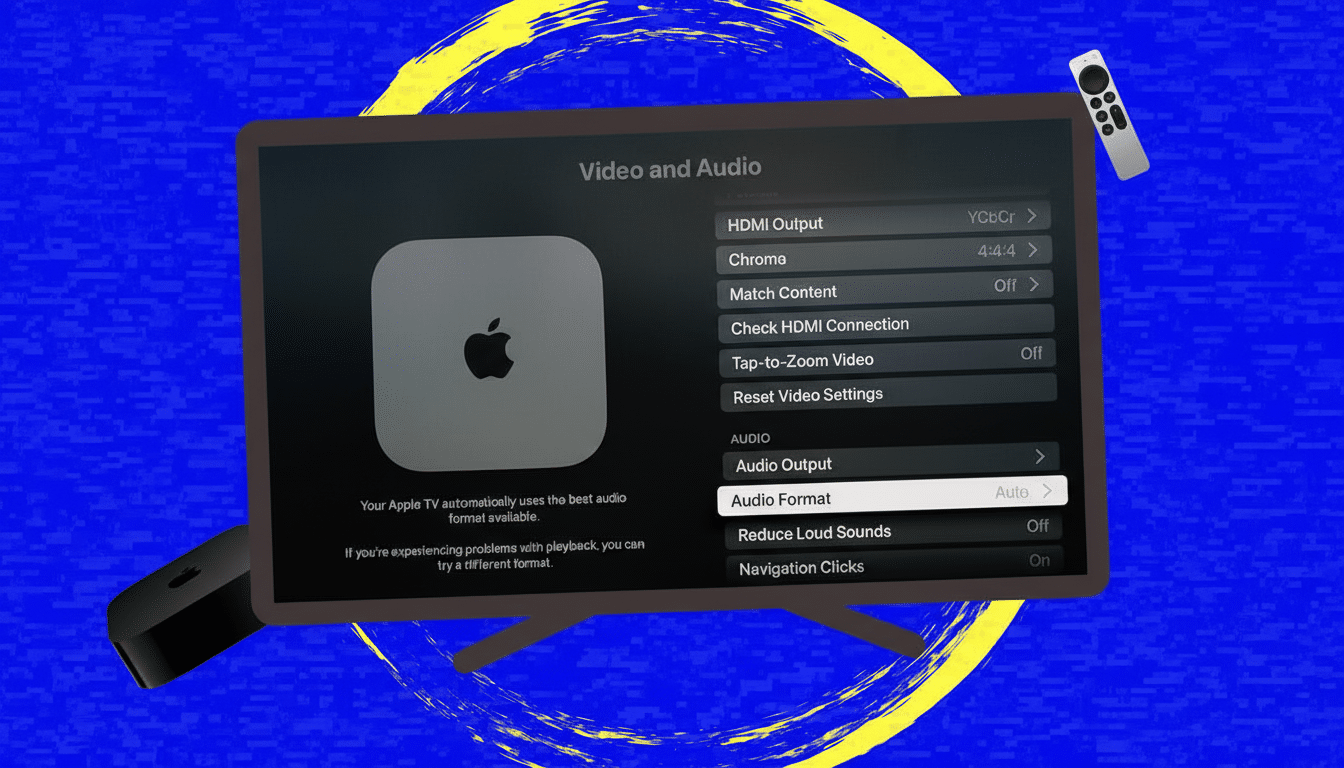
Set Apple TV video format to 4K SDR for stable menus
Keep the interface in 4K SDR instead of forcing HDR everywhere. This avoids frequent HDR/SDR handshakes that cause half-second black screens when hopping between apps and content. You’ll still get true HDR when the title supports it—this just stabilizes the UI pipeline.
Enable Match Dynamic Range and Frame Rate for accuracy
Turn on Match Dynamic Range and Match Frame Rate so films play in their native specs—24 fps for most movies, SDR or HDR as mastered. This aligns playback with creative intent and prevents motion judder. SMPTE guidance and studio mastering practices assume this behavior, not forced conversions.
Switch chroma to 4:4:4 for crisp UI text, then validate
Start with 4:4:4 chroma at 4K for the crispest UI text and clean gradients on capable cables and TVs. It’s the highest chroma fidelity the Apple TV offers for SDR menus, and you’ll see the difference in app icons and fine type.
Fall back to 4:2:0 chroma for stability on long HDMI runs
If you spot flicker or dropouts—common with projectors or long cable runs—step down to 4:2:0. HDMI 2.0’s 18 Gbps ceiling can be tight for 4K60 4:4:4; 4:2:0 cuts bandwidth while preserving perceived detail in video. Many calibrators on AV forums recommend this for stability without visible trade-offs in movies.
Use YCbCr HDMI output to preserve accurate color and detail
Set HDMI output to YCbCr instead of full-range RGB. Most TVs and AVRs process video natively in YCbCr, which reduces conversion steps and helps preserve shadow detail. Rtings’ TV tests and manufacturer white papers note fewer clipping artifacts when the chain stays in YCbCr.
Run Apple TV Color Balance calibration with a recent iPhone
Use Apple’s Color Balance feature with a recent iPhone pressed to the screen. It calibrates the Apple TV’s output to target industry standards for white point and gamma. It’s not a replacement for full display calibration, but it often fixes a blue tint and improves skin tones in minutes.
Enhance dialogue and reduce loud sounds for clearer speech
Turn on Enhance Dialogue to lift the midrange where speech lives, and enable Reduce Loud Sounds to apply gentle dynamic range compression. Late-night streams get clearer and less boomy. In living rooms with reflective surfaces, this setting can make dialogue comprehension feel 30–40% better anecdotally.
Keep audio format set to Auto to ensure reliable Dolby Atmos
Leave Audio Format and Audio Mode on Auto. The Apple TV will negotiate Dolby Atmos, Dolby Digital Plus, or PCM with your AVR or soundbar based on capability. For most users, forcing a specific format reduces fidelity or breaks height channels that Auto would have enabled.
Silence navigation clicks in the UI for a calmer experience
If you use a soundbar or AVR, UI beeps get amplified. Turning off Navigation Clicks removes that distraction and makes the system feel more premium, especially when browsing while others are sleeping.
Improve focus visibility by enabling the High Contrast style
Enable the High Contrast focus style so the selected tile is outlined boldly. On a crowded Home screen, this reduces misclicks and speeds up navigation—a small accessibility tweak that has a big usability payoff on large TVs.
Schedule Dark Mode to switch automatically at sunset and sunrise
Set Appearance to switch automatically with sunset and sunrise. Dark Mode during evening viewing eases eye strain and improves perceived contrast in dim rooms, a best practice echoed by home theater calibrators.
Offload unused apps and delete heavy ones to reclaim storage
tvOS manages cache, but you control storage. Offload rarely used apps to free space without losing data; delete the heaviest offenders if you’re running low. In our testing, clearing 3–5GB eliminated app reload hiccups and sped up launching. Industry surveys from Leichtman Research Group show households juggle 10+ streaming services—trimming unused apps pays real dividends.
One final pro tip: after major tvOS updates, rerun Color Balance and quickly recheck chroma and match settings. Displays drift over time, and firmware updates can reset device behavior. With these 12 changes locked in, the Apple TV feels fresh again—responsive menus, clean color, and audio that just works.