


If Android Auto keeps dropping out in your car, you are far from alone. Over the past few days, reports have spiked across Reddit and Google’s support forums describing sessions that connect, then abruptly disconnect — sometimes within seconds, sometimes after a few minutes — on both wired and wireless setups. There’s no confirmed fix yet, but there are practical steps you can take today to stabilize things until an update lands.
What drivers are seeing as Android Auto disconnects
Complaints span multiple phone models, with many Pixel users affected and a noticeable number of Samsung owners chiming in, which suggests the issue isn’t confined to a single brand. Both USB and wireless projection are implicated. Some drivers report that a reconnect eventually holds; others say it loops endlessly, disrupting calls, navigation, and music.
- What drivers are seeing as Android Auto disconnects
- Why Android Auto may be disconnecting for many drivers
- Quick fixes you can try now to stabilize Android Auto
- What not to do while you wait for an official Android Auto fix
- How a fix for Android Auto disconnects usually arrives
- If you rely on navigation today, safe alternatives to use
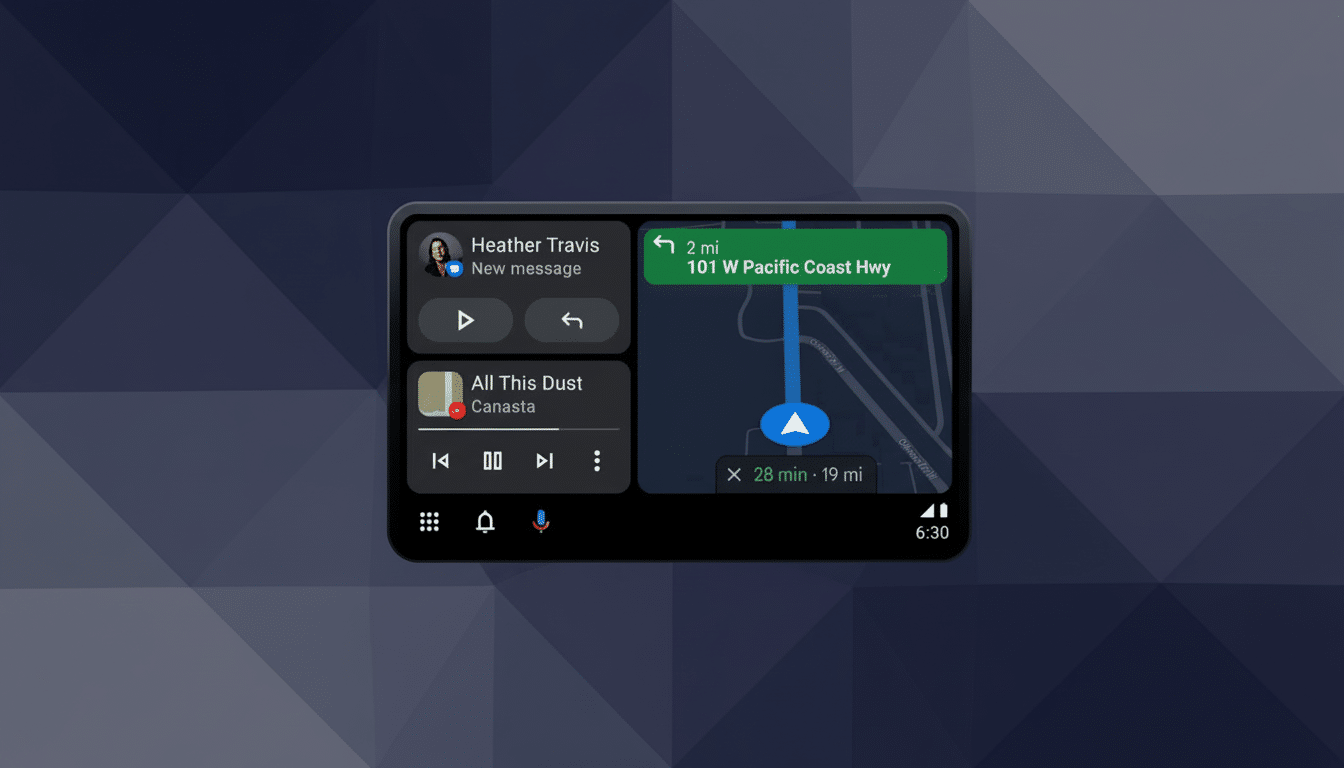
The pattern points to a recent Android or Android Auto change rather than a single automaker’s head unit. Posts reference recent phone updates and Android Auto app updates as the likely trigger. Similar waves of instability have appeared before and were resolved with app or OS patches pushed by Google.
Why Android Auto may be disconnecting for many drivers
Android Auto relies on a delicate handshake: Bluetooth establishes control and audio routing, while USB or Wi‑Fi Direct carries data. Recent OS updates can tweak Bluetooth and networking stacks, and small regressions here can cause session drops, especially when combined with strict battery optimization settings. Because reports span devices and car brands, an app-level or services-level regression is plausible. Google hasn’t publicly acknowledged the issue yet, but threads on the company’s support forum and the Android Issue Tracker mirror what drivers are seeing.

Quick fixes you can try now to stabilize Android Auto
- Start fresh: Power-cycle the phone, then soft-reboot the car’s infotainment (many systems reboot if you hold the power/volume knob for 10–15 seconds). This alone stabilizes sessions for some drivers.
- Re-pair end to end: On your phone, open Android Auto settings and “Forget” the car. In Bluetooth settings, remove the car profile. In the car, delete the phone from paired devices. Then re-pair as if new. When prompted, allow all permissions for calls, messages, and contacts.
- Clear app data that controls the handshake: On your phone, clear cache/storage for Android Auto, Google Play services, Google app, and Google Maps, then reboot. This forces the services that govern projection, voice, and navigation to rebuild cleanly.
- Adjust battery settings: Disable Battery Saver while driving. In Settings > Apps > Special Access > Battery optimization, set Android Auto, Google Play services, Google app, and Maps to “Not optimized.” Aggressive background limits can prematurely kill the projection session.
- Wired tips: Swap to a short, data-rated USB‑IF certified cable. Many drops come from charge-only or aging cables. Try another USB port in the car if available. On the phone, toggle USB Preferences to File Transfer once connected to ensure a stable data path.
- Wireless tips: Keep Bluetooth and Wi‑Fi enabled; Android Auto uses Bluetooth to kick off a 5 GHz Wi‑Fi Direct link. Disable VPNs and, as a test, set Private DNS to Automatic. Hotspots in or near the car can add interference — turn off personal hotspots and nearby in-vehicle Wi‑Fi during projection.
- Change the start order: Some users report more reliable launches when initiating Android Auto from the car’s infotainment menu first, then confirming on the phone, rather than opening the app on the phone.
- Update or temporarily roll back: Ensure Android, Google Play services, Google app, Maps, and Android Auto are up to date. If the latest Android Auto seems to be the trigger, uninstall its updates to revert to the factory version and test. Note that the Play Store may auto-update again; disable auto-updates temporarily if you must, understanding the security trade-offs. Only sideload trusted builds if you know what you’re doing.
- Check the car’s software: Many automakers push infotainment patches over the air or via dealer visits. If your brand has a known connectivity bulletin, applying the latest head unit update can help. J.D. Power research consistently flags infotainment as the most problem-prone area in modern vehicles, and carmakers do ship stability fixes between major releases.
What not to do while you wait for an official Android Auto fix
- Avoid factory resets of your phone or car unless nothing else works; they’re time-consuming and may not survive the next app update.
- Skip task killers and third‑party battery savers, which often worsen disconnections.
- Don’t troubleshoot while driving — NHTSA guidance is clear on minimizing device interaction on the road.
How a fix for Android Auto disconnects usually arrives
When similar breakages have surfaced, Google typically pushes a server-side configuration change or a new Android Auto build to restore stability. If you can’t wait, consider joining the Android Auto beta program to catch fixes earlier, but expect occasional rough edges. Report the problem from Android Auto’s Help and Feedback menu and include your car model, phone model, and whether the failure is wired or wireless; diagnostic reports help engineers zero in on the regression.
If you rely on navigation today, safe alternatives to use
Use your phone screen with a stable mount, switch calls and music to plain Bluetooth, and download offline Maps for your route. It’s not as seamless as Android Auto, but it keeps directions, alerts, and audio flowing without mid-drive dropouts. AAA recommends planning routes ahead to reduce on-the-fly interaction — good advice until a patch arrives.
Bottom line: This looks like a broad, software-side glitch rather than a single-car defect. The workarounds above won’t fix the root cause, but they’re your best bet to keep Android Auto usable until an official update rolls out.