


If Android Auto keeps disconnecting after a few seconds, you’re not alone. Smartphone mirroring is one of the biggest complaints about in-car tech, and J.D. Power researchers have consistently highlighted connectivity issues and infotainment systems that don’t work as designed as leading pain points among new-vehicle buyers. More than just a nuisance, a dropped connection in the wrong place could be unsafe. The good news: the majority of disconnects are related to a few fixable causes.
Start with physical checks that often cause disconnects
Wired users: start by swapping the cable. Connect with a high-quality, short (less than 1 m) USB cable. There are a lot of “charge-only” or worn cables that will transfer data for a moment and then disconnect under vibration. Test another cable and another USB port in the car — a front port usually carries more reliable data than console hubs. Detach any magnetic tips, dongles, or USB extenders that can cause micro-disconnects, and blow out lint from the phone’s port.
- Start with physical checks that often cause disconnects
- Update your phone and your vehicle’s infotainment software
- Reset and re‑pair cleanly to clear corrupted pairings
- Quell battery and background power hogs while driving
- Stabilize wireless Android Auto by reducing interference
- Wired Android Auto fixes for cables and USB settings
- Bluetooth and audio stability tweaks to reduce dropouts
- When it’s the car: diagnosing head unit or system faults
- Safety and escalation steps when problems persist
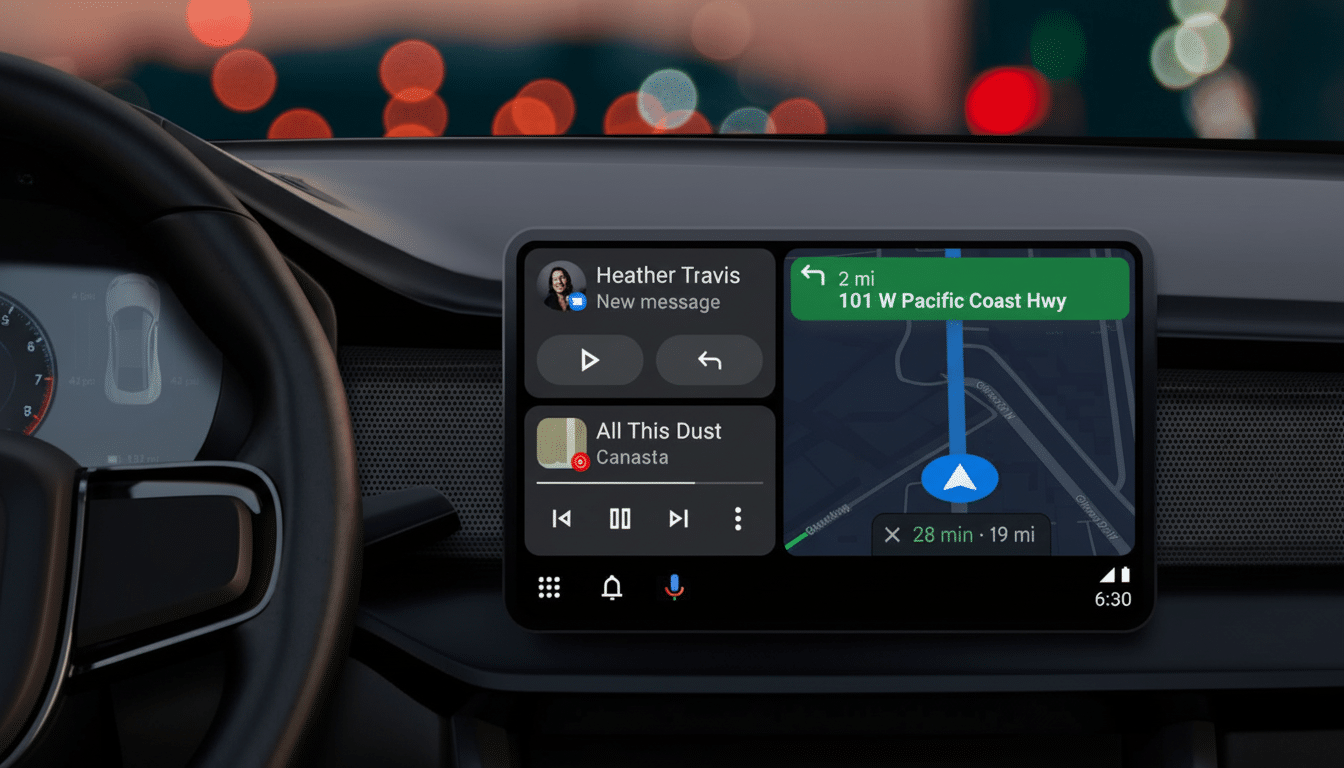
Wireless users: Android Auto Wireless passes commands over Bluetooth, and the primary data stream travels on a 5 GHz Wi‑Fi Direct connection.
Update your phone and your vehicle’s infotainment software
Update Android, the Android Auto app, Google Play Services, Google Maps, and your car’s infotainment firmware. Car makers send out stability patches all the time through over-the-air updates or at dealers, and Google’s monthly release notes often refer to Bluetooth and projection fixes. If you have a partner app or owner portal for your vehicle’s brand, check there for bulletin notes about Android Auto drops.
Reset and re‑pair cleanly to clear corrupted pairings
On your phone, go to Settings > Apps > Android Auto and clear the cache; if that doesn’t fix things, clear the storage to reset its pairing data. Do the same with Google Play Services and the Google app (cache only for those). In Android Auto, delete the vehicle from “Connected cars.” In the car, delete the phone profile from Bluetooth and projection menus. Reboot both devices, then re‑pair from scratch.
Still stuck? Go to Settings > System > Reset options > Reset Wi‑Fi, mobile and Bluetooth. This is for network stacks that occasionally become corrupt after OS updates. You will need to re‑pair Bluetooth devices and Wi‑Fi networks afterward.
Quell battery and background power hogs while driving
Overzealous power saving can close Android Auto sessions. In Settings > Apps, open Android Auto, Google Maps, Google Play Services, and your favorite music or messaging apps and set Battery to “Unrestricted.” Turn off Battery Saver while driving, and uninstall third‑party task killers or “phone booster” apps. On certain phones, turn off Adaptive Battery for the apps above to avoid them being slowed in the background.
Stabilize wireless Android Auto by reducing interference
Wireless projection operates on 5 GHz, so anything that switches Wi‑Fi may break the connection. Disable Personal Hotspot, VPN, and Private DNS when you are using Android Auto. In Wi‑Fi preferences, disable any options such as “Switch to mobile data if Wi‑Fi is weak” or the equivalent. Maintain Bluetooth and Wi‑Fi, and keep mobile data on. A lot of apps require it for traffic and streaming, even though the car link is Wi‑Fi Direct.
Open Android Auto settings and tap the version number field about 10 times in rapid succession to unlock developer options. If the wireless connection doesn’t work when pairing fails at the Bluetooth step, delete the car on the phone and re‑add it.
Wired Android Auto fixes for cables and USB settings
Use a USB 2.0/3.0 data cable with fast data, not only fast charging support. In Developer options (phone), make sure the Default USB configuration option isn’t set to “Charge only.” Avoid USB hubs and aftermarket adapters that change pinouts. If your vehicle has more than one USB port, try each: some are power‑only.
Bluetooth and audio stability tweaks to reduce dropouts
Erase old Bluetooth pairings from the phone and the car to eliminate conflicts. If the car is capable, prioritize your phone on the head unit. Experienced users can also enter Developer options and select another Bluetooth AVRCP standard (e.g., 1.4 vs 1.6) if audio controls are sometimes broken, then re‑pair to test (tip by @smrnv13).
When it’s the car: diagnosing head unit or system faults
Head units are prone to crashing or overheating, particularly in the heat of summer and with older storage. If the infotainment screen restarts along with the disconnect, make an appointment to have your dealer check for updated infotainment software or technical service bulletins that may concern smartphone projection. Test a different phone in the same car and try your phone in another car to help determine if it’s the vehicle or the device that has issues.
Safety and escalation steps when problems persist
If navigation is important, download an offline map to your phone and store a second certified cable in the glove box. Set media to resume so you can keep your eyes on the road, and use voice or pull over while menu‑fiddling. Send reports of the issue through Android Auto > Help and feedback > Send feedback, including your phone model, OS version, car make/model, wired/wireless connection type, and any reproduction steps. Both automakers and Google rely on these reports to prioritize fixes, and stability improvements often arrive in recent software patches.
Bottom line: the bulk of disconnects are due to cables, power management, or contention on the network. Go through the steps one by one, and you’ll most likely transform a flaky setup into a rock‑solid commuter.