


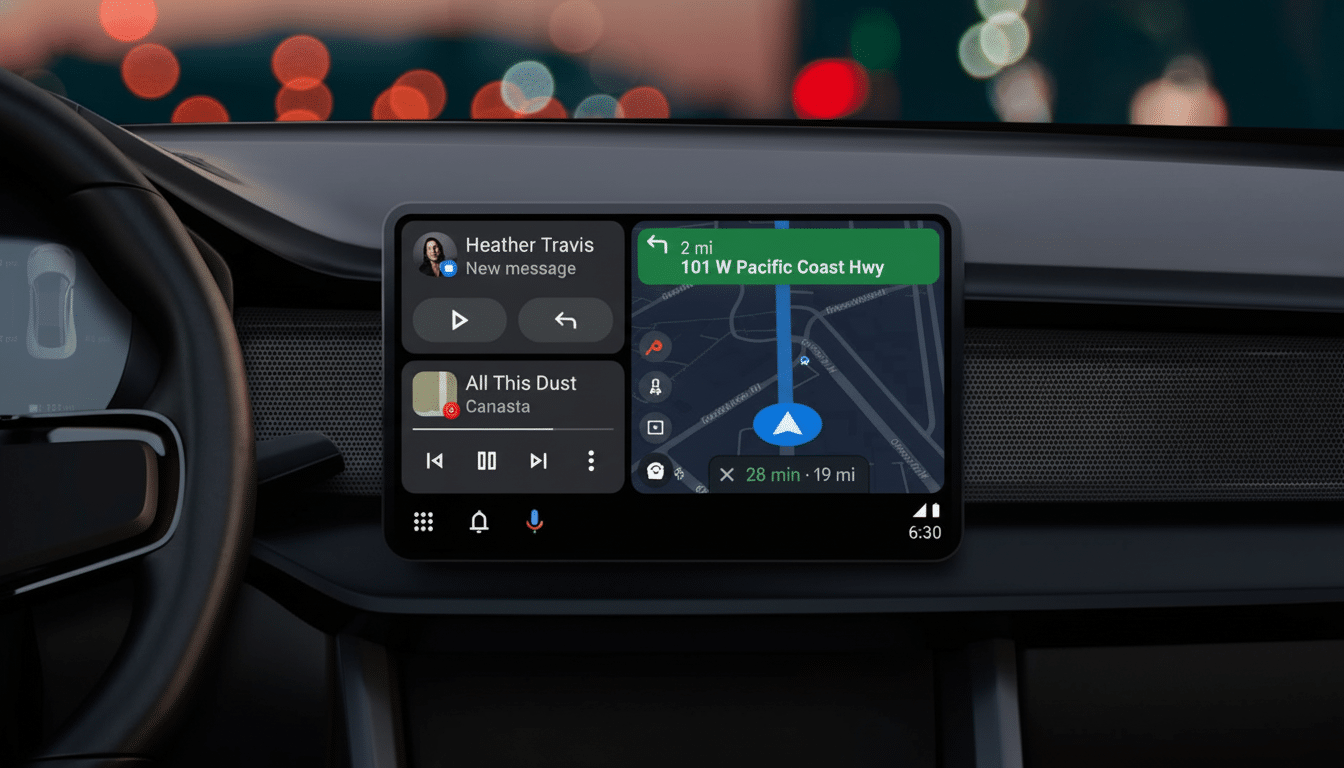
If your Android Auto screen is pixelated or zoomed in, as if it’s magnified, and you’re seeing larger icons than before alongside an over-cropped map of your location while driving with Android Auto on your car’s center console display — nope, you aren’t losing it.
An increasing number of drivers report that the interface is randomly enlarging, casting a magnified pinprick view over navigation and media apps alike, and it’s doing so irrespective of installation type or make of car.
- What drivers are reporting about the sudden UI zoom issue
- How widespread is it across phones, cars, and versions
- What is causing this zoom and the oversized interface
- Quick fixes to try now while Google works on a patch
- How to help get it resolved and report it to Google
- Bottom line: a software scaling bug is the likely cause
What drivers are reporting about the sudden UI zoom issue
Posts in Reddit’s r/AndroidAuto describe a strange UI zoom that occurs out of nowhere. A single head unit quirk didn’t explain how one user with a 2024 Chevrolet Silverado 2500 had the issue for weeks, then duplicated it in a newer Ford pickup. Others replied that while Google Maps can expand, Spotify stays the same; on split-screen, the navigation pane zooms in while the media tile doesn’t.
The behavior doesn’t discriminate by connection type. Both wired USB and wireless projection are cited in reports, indicating the bug lies within the rendering pipeline rather than being a cable or bandwidth issue. A handful of users say the issue was fixed for them by updating to Android Auto’s latest version, but not everyone is so lucky.
How widespread is it across phones, cars, and versions
It’s hard to gauge prevalence. Some of the most obvious reports are from people using older phones, such as a Pixel 3 XL running Android 12, but other commenters experiencing the same symptoms have different handsets and much newer vehicles. There’s no clear trend by carmaker, head unit provider, or even model year, and there is no broad public acknowledgment on Google support pages or release notes as of now.
Android Auto bugs have historically come in waves, often after updates that play with layouts, densities, or media templates. The “Coolwalk” UI, which added support for dynamic split-screen layouts, also increased the variety of screen configurations that Android Auto must be compatible with. It’s great to achieve that flexibility when it works, but it also creates opportunities for edge cases.
What is causing this zoom and the oversized interface
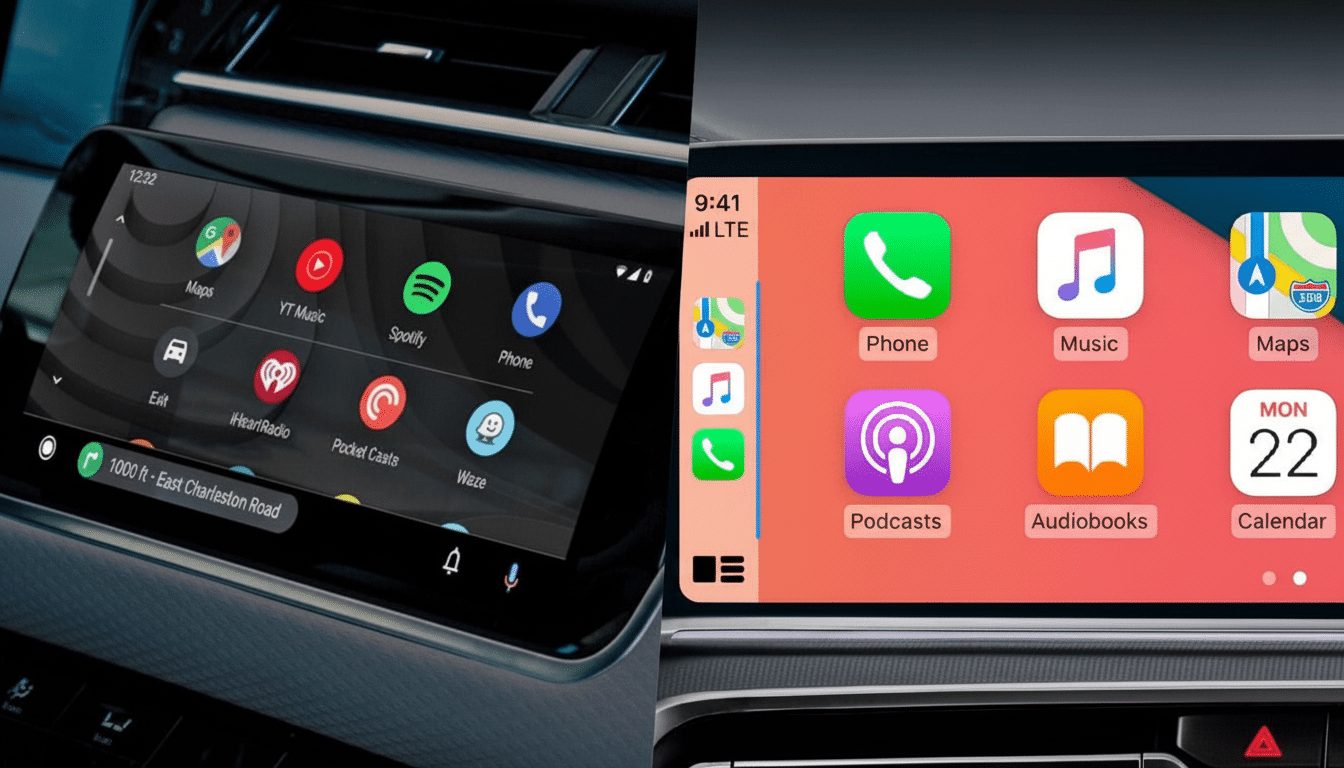
Android Auto draws the UI on the phone and then transmits it to the car display according to constraints negotiated with the head unit, which include resolution, DPI, safe zones, and aspect ratio. Scaling anomalies can occur if that handshake isn’t correct. If the system is inaccurate, an in-car density too low for a given display may make UI elements oversized; misreported cutouts or insets can crop parts of the map.
Some drivers only have the navigation pane magnified, which indicates an issue with density for that layout (navigation and media tiles are drawn separately in split view). A bad cache of display parameters or an interaction with the phone’s display settings — such as non-default display size or accessibility magnification — could also be at fault. Parity between wired and wireless points toward something other than transport, perhaps a rendering issue in the Android Auto app or even just the configuration.
Quick fixes to try now while Google works on a patch
- Update Android Auto in the Play Store. If you’re on the beta channel, try switching to stable; some users report the latest stable build removes the magnification.
- On your phone, clear Android Auto’s cache and storage, then set up Android Auto in the car again to reestablish display metrics and flush stale layout data.
- Set your phone’s display size and font size back to default, and temporarily turn off accessibility magnification features.
- Test both USB and wireless (if your car supports it) to separate variables. Although this seems transport-agnostic, it helps confirm you’re seeing the same bug.
- Install any available OTA or dealer updates for your car’s infotainment system. Head unit manufacturers fix projection compatibility and DPI reporting issues over time.
How to help get it resolved and report it to Google
If the issue continues, take a bug report and post on Google’s Android Auto Help Community or Issue Tracker along with the following details:
- Phone make and model
- Android OS version
- Android Auto app version
- Vehicle year, make, and model
- Type of connection (USB, Bluetooth, wireless)
- Description of the problem, when it occurred, and whether it affects more than one pane
Screenshots and clear steps to reproduce go a long way in helping get it fixed quickly. Stay on top of Android Auto release notes in the Play Store and community forums. Display-related regressions are often silently fixed “in between” point releases in the fix-gradual-test-introduction-fixes-belated-regression-bounce cycle. Jumping in and out of the beta program can also help you test whether a new build may resolve the behavior.
Bottom line: a software scaling bug is the likely cause
If Android Auto shows up in a magnified view, that’s not necessarily a malfunction of your car or phone hardware. Recent reports suggest a software-side scaling bug that can impact wired and wireless navigation and media tiles. Update, reset, and retest — and report your configuration if you still experience it. The more solid numbers Google gets, the quicker this weird zoom should be flushed from the system.