


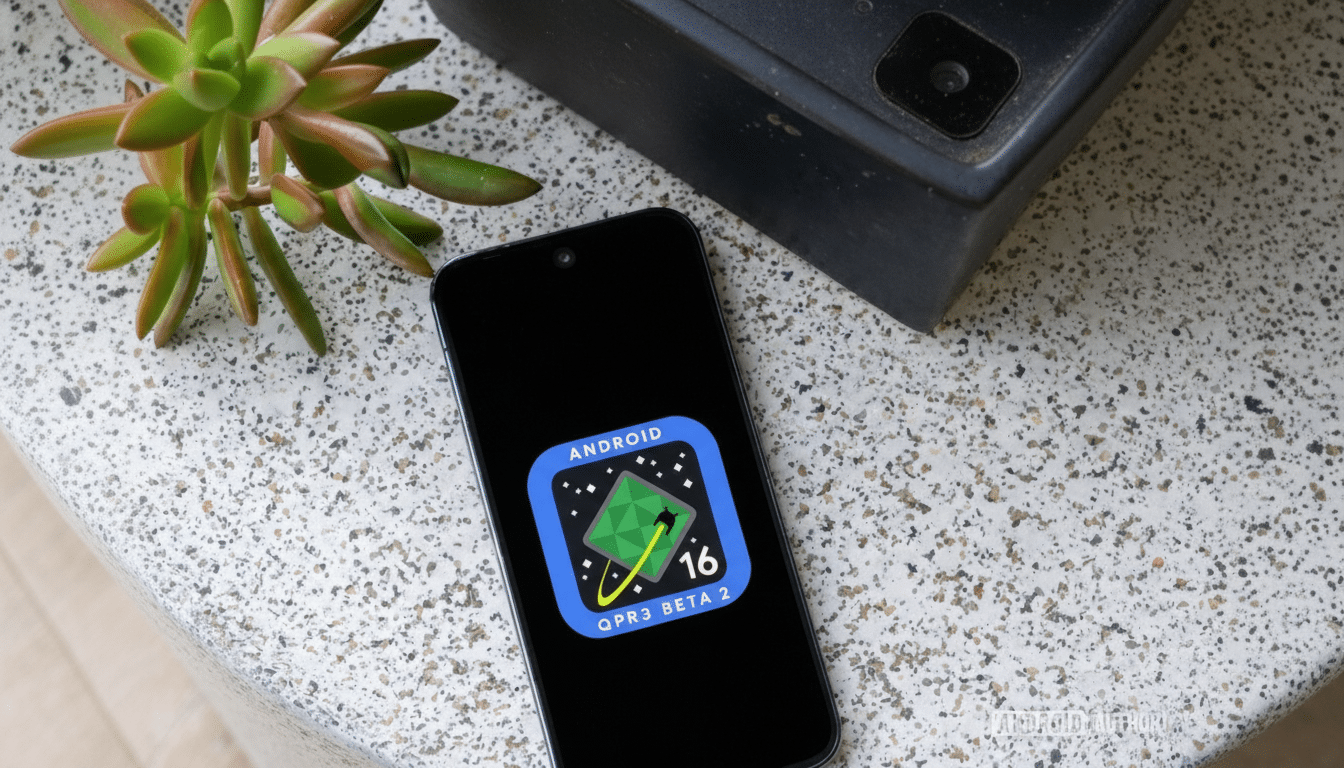
Google’s latest quarterly platform release beta is live, and Pixel owners can jump on Android 16 QPR3 Beta 2 right now. This build focuses on stability and bug fixes while laying groundwork for the next Feature Drop, making it the most polished test version yet. If you want the update today, here’s exactly how to get it, whether you’re already on Beta 1 or installing the QPR track for the first time.
How To Install If You’re Already On Beta 1
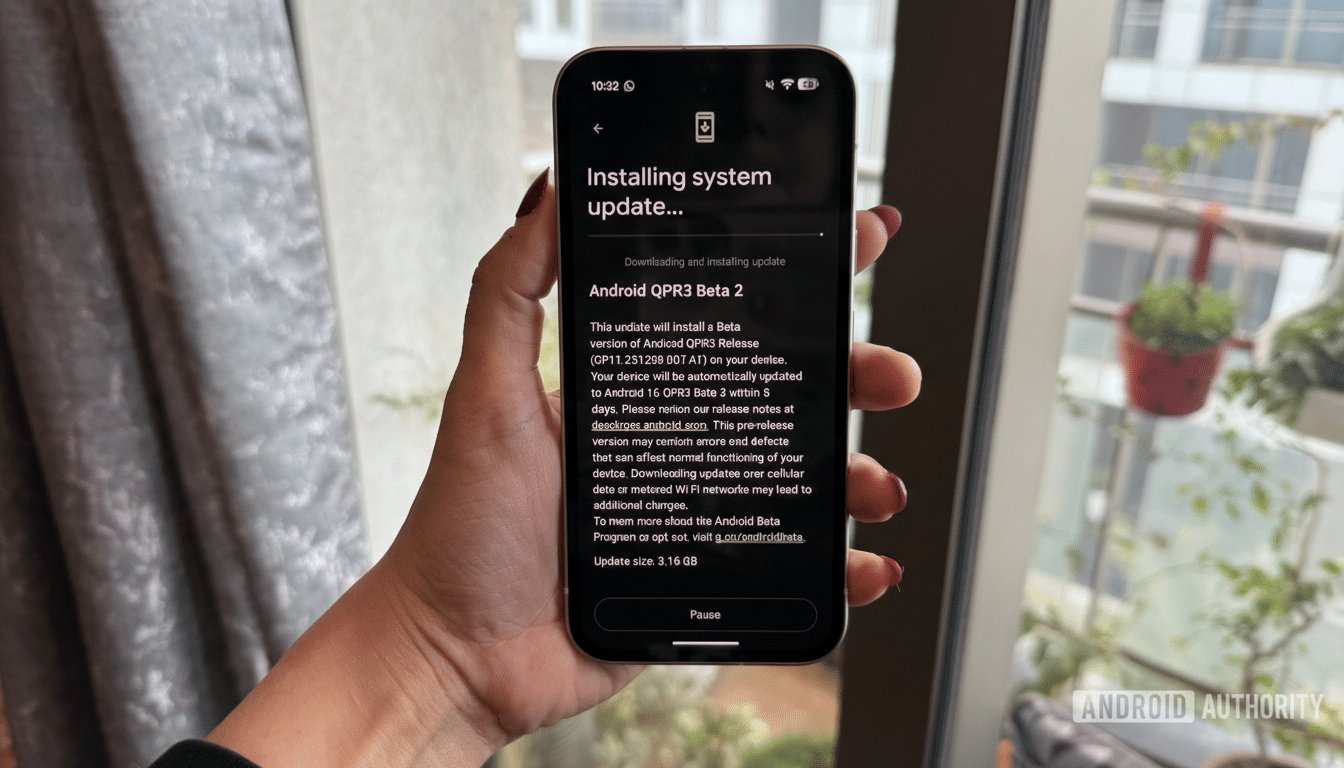
If your Pixel is already running Android 16 QPR3 Beta 1, the move to Beta 2 is a routine over-the-air update. Open Settings, tap System, then System update, and choose Check for update. When Android 16 QPR3 Beta 2 appears, follow the on-screen steps to download and install. Expect a download in the few-hundred-megabyte range, a brief verification stage, and a reboot. The whole process typically takes 10–20 minutes, depending on your connection and storage speed.
Tip from the field: keep your phone on Wi‑Fi, plug it into power, and free at least 2–5 GB of storage to avoid installation hiccups. Pixels won’t install major OTAs under 50% battery unless connected to a charger.
First-Time Install: Enroll in the Android Beta Program
If you skipped Beta 1, you can still join directly on Beta 2. Enroll your compatible Pixel in Google’s Android Beta Program using your Google account. Select your device, accept the terms, and confirm enrollment. Within minutes to a few hours, an over-the-air update labeled Android 16 QPR3 Beta 2 will be offered to your phone.
Once enrolled, go to Settings, System, System update, and tap Check for update. If you don’t see the build immediately, don’t worry—server-side registration can lag. Check back later and it should appear. Carrier-locked models can trail unlocked devices by a short window, but the OTA still arrives via the standard updater.
Eligibility varies by model and region. Generally, recent Pixel flagships and A-series devices that still receive platform updates are supported. If your device is visible for opt-in on the Android Beta Program page, you’re good to go.
Advanced Method: Sideload or Flash Manually
Prefer the manual route or the update hasn’t hit your device yet? You can sideload the OTA from a computer using Android Debug Bridge. Enable Developer options, toggle on USB debugging, then reboot your phone into recovery and choose Apply update from ADB. From your computer, run adb sideload followed by the OTA file name. This preserves data when moving between matching tracks.
If you need a clean start, flashing the factory image via fastboot is an option, but it typically wipes data unless you edit the flash script. Make sure your bootloader status and OEM unlocking settings allow it, and verify images against checksums. These procedures are detailed in Android Developers documentation and are intended for experienced users.
What’s in Beta 2 and Why It Matters for Pixel Users
QPR builds are where Google lands broad stability work, UI refinements, and under-the-hood fixes that ship to the stable channel with Feature Drops. Beta 2 traditionally tightens performance and power management, smooths out launcher and system UI issues, and aligns with the month’s security patches. Recent QPRs have bundled dozens of vulnerability fixes reported in the Android Security Bulletin, so even pre-release builds can deliver meaningful hardening.
For Pixel users, QPR3 often previews quality-of-life tweaks that arrive widely a bit later—think subtle changes to volume controls, lock screen behaviors, or connectivity tiles. If you like living on the leading edge without the roughest edges, Beta 2 is typically the sweet spot.
Back Up First And Avoid Downgrade Surprises
Before any major system update, back up. Use Google One for device data, verify photos and videos are synced, and export anything time-sensitive like authenticator codes. While OTAs from Beta 1 to Beta 2 are designed to be seamless, a solid backup is your safety net.
If you plan to leave the beta later, timing matters. Unenrolling while on a beta build typically forces a rollback to the latest stable version, which triggers a full device wipe. To avoid that, wait until the stable QPR3 release matches (or supersedes) your beta build, then unenroll and install the stable update.
Troubleshooting Common Snags and Update Errors
If the OTA doesn’t appear after enrollment, give it a few hours and reboot your phone. Switching Wi‑Fi networks can help kick the check, but avoid clearing system services data—it rarely helps and can break other features. If you’re tight on space, remove large games or download-heavy apps temporarily to ensure the update has room to apply.
Should installation fail at verification, recheck storage, confirm a stable network, and try again. Persistent errors when sideloading often come down to mismatched builds or a corrupted download; verify the file integrity and that you’re using the correct OTA for your device.
For authoritative details, refer to Google’s release notes for QPR3 Beta 2, the Android Beta Program FAQ, and the Android Developers guides for OTA sideloading and factory images. With preparation and a bit of patience, your Pixel can be running Android 16 QPR3 Beta 2 today.