


Getting rid of an old computer is easy; making sure your data goes with it is not. A compact, budget-friendly USB privacy tool now on the market is aiming to fix that problem, offering simple, permanent data wipes for people selling, donating, or recycling their PCs—without requiring you to be a forensic expert.
Why Deleting Isn’t Enough to Protect Your Data
Drag a file to the Recycle Bin and it only disappears from view. Even a quick format or basic reset often leaves recoverable traces. That gap matters: a Blancco Technology Group study found residual data on 42% of used drives it purchased, including emails, tax records, and photos. Industry audits by the National Association for Information Destruction have reached similar conclusions, with roughly 40% of secondhand devices exposing personal information.
The stakes aren’t theoretical. The IBM Cost of a Data Breach Report puts the global average breach at $4.88 million, a figure driven in part by compromised endpoints and mishandled asset disposal. Regulators also expect diligence: guidance from the US Federal Trade Commission and the UK Information Commissioner’s Office makes clear that companies and individuals are responsible for proper media sanitization.
How the USB Privacy Tool Works for Permanent Wipes
Priced at $39.99, the USB-based tool targets the everyday gap between “delete” and “destroy.” Plug it in, launch the companion app, and drag in files or folders you want gone. The software overwrites the underlying data, making it unrecoverable with typical recovery utilities. There’s also a free-space scrub that sweeps areas where previously deleted files might still linger—especially valuable before handing a device to a new owner.
Two pragmatic touches stand out: you can run it as often as you like, on multiple machines, and the small form factor means it fits neatly in a drawer or travel kit. For families upgrading laptops or small businesses cycling desktops, those details matter—consistent, convenient use is what actually reduces risk.
SSDs vs. HDDs: What Secure Erase Really Means
Not all storage is equal. Traditional hard drives store data on magnetic platters, where a verified overwrite can meet best practices. Solid-state drives use wear-leveling, which can leave remnants untouched by ordinary writes. That’s why experts lean on standards such as NIST Special Publication 800-88 Rev. 1, which defines three tiers of sanitization: Clear, Purge, and Destroy.
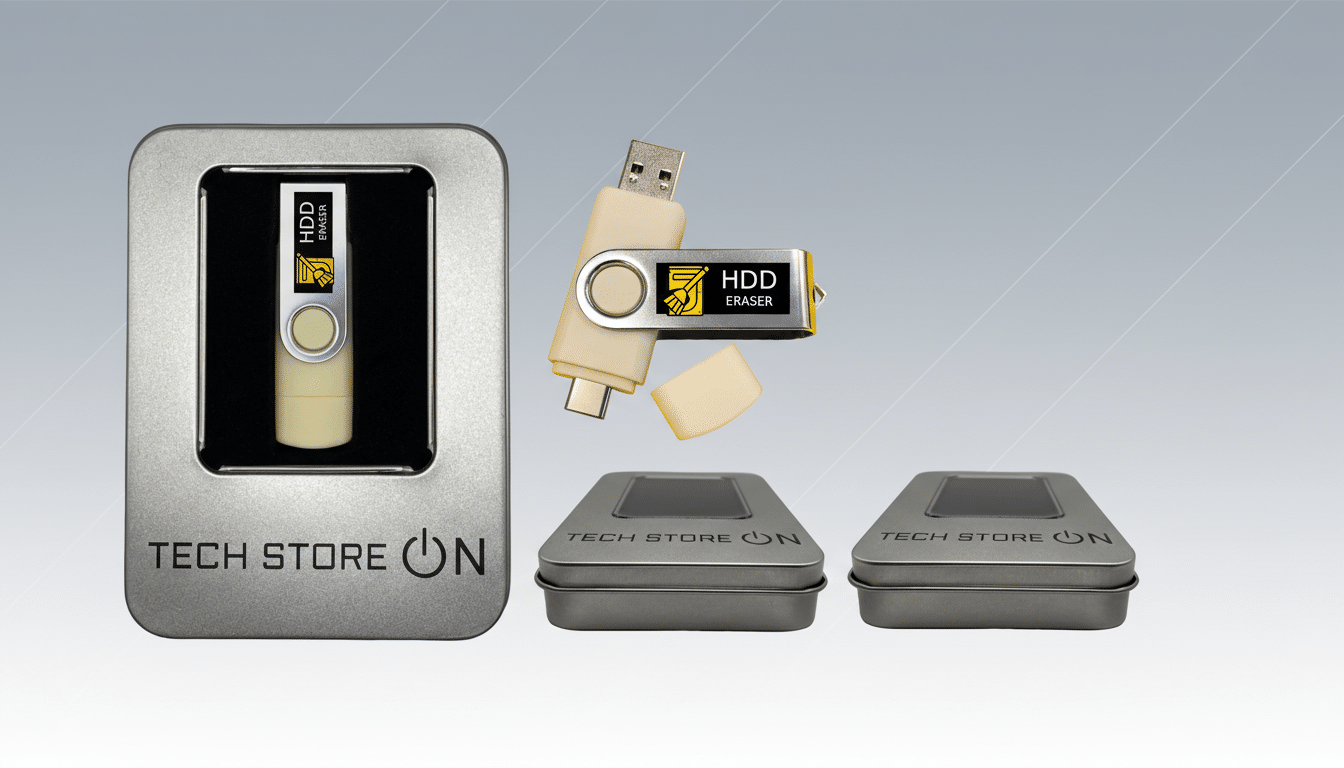
For HDDs, a validated overwrite typically “Clears” data effectively. For SSDs, “Purge” methods—like built-in ATA Secure Erase, NVMe Format with secure options, or cryptographic erase on self-encrypting drives—are preferred. This USB tool focuses on robust file and free-space wiping within the operating system. Pairing it with a full OS reset that includes drive cleaning—or using manufacturer secure-erase utilities—gives you defense in depth, particularly on SSDs.
Real-World Guidance From Security Pros on Data Wipes
Security practitioners typically recommend a layered approach: sanitize sensitive files regularly during device use, then perform a comprehensive wipe at end-of-life. That aligns with guidance from standards bodies and regulators: wipe what you can continuously, and validate a complete sanitization before transfer. The advantage of a dedicated wiping utility is precision—it’s faster and less disruptive than a system-wide nuke when you just need to retire archives, browser caches, downloads, or project folders.
For organizations, documenting the process matters. Asset disposition policies referencing NIST 800-88, with logs of the methods used, help prove compliance. For individuals, a simple checklist and proof that overwriting was performed can deter disputes if a device is resold or returned.
Quick Checklist Before You Sell or Donate
- Back up your files and sign out of cloud services, browsers, and apps with device authorization (email, messaging, password managers).
- Use the USB tool to wipe sensitive folders and perform a free-space scrub. Repeat for all user profiles.
- For Windows, run Reset This PC with the “Remove everything” and “Clean data” options. For macOS, use Erase All Content and Settings on Apple silicon or perform a full erase and reinstall on Intel Macs.
- When possible, execute a manufacturer Secure Erase for SSDs or a standards-aligned wipe for HDDs, then reinstall the OS fresh for the next user.
- Physically destroy or decommission drives that cannot be confidently sanitized or that contain highly sensitive archives.
The Bottom Line on Securely Wiping Old Computers
Data doesn’t disappear just because you hit delete. An inexpensive USB wiping tool that combines targeted overwrites with free-space cleansing makes it far harder for your files to resurface—and lowers the odds of a costly privacy headache. Used alongside built-in OS resets and, where applicable, drive-level secure erase, it delivers a practical, repeatable path to a truly clean slate before your old computer moves on.