


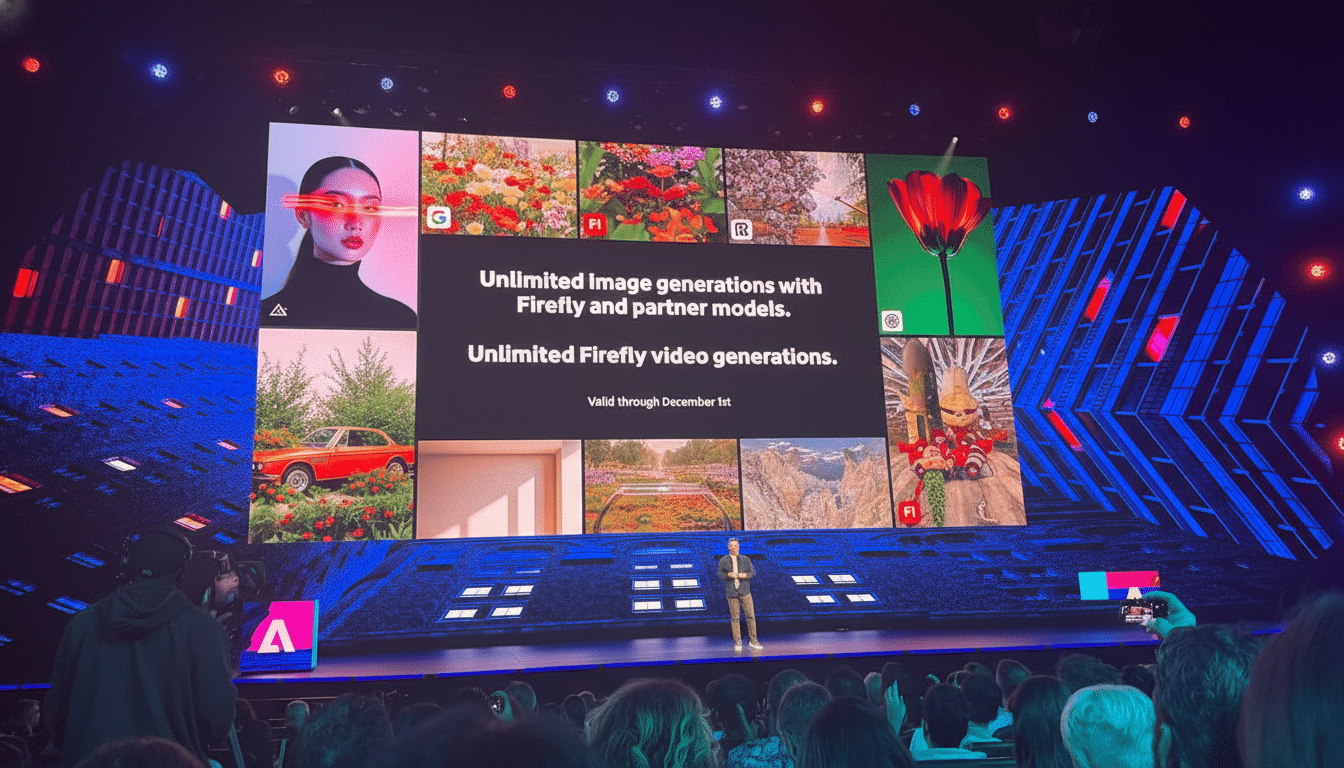
Adobe is temporarily unlocking free, unlimited AI image and video generations in Firefly, letting anyone create at scale without watching a credit meter. The offer spans Firefly on the web, the Firefly mobile app, and Firefly Boards, with outputs up to 2K resolution. Here’s how to access it fast and make the most of the window while it lasts.
How to Unlock Unlimited Firefly Generations for Free
Sign in with an Adobe ID or create a free account, then open Firefly in a browser or install the Firefly app. New signups during the promotion are automatically enabled for unlimited generations, and existing Firefly plan holders are included as well. There’s nothing extra to toggle—just start generating. To stay within the unlimited tier, set output resolution to 2K or below in the export settings before you render.
- How to Unlock Unlimited Firefly Generations for Free
- Where You Can Generate and What Is Included
- Models Available Inside Adobe Firefly and Partner Options
- Limits, Rights, and Safety During the Unlimited Period
- Expert Tips to Maximize Your Unlimited Window
- What Happens After the Promotion Ends for Firefly
From the home screen, pick Image, Video, or Boards. Enter a prompt or upload a reference image or clip, choose a model from the dropdown, and generate. If you’re on mobile, projects sync to Creative Cloud so you can begin on your phone and finish on desktop without losing versions or history.
Where You Can Generate and What Is Included
Firefly on the web is the fastest way to iterate with side-by-side variations, style presets, and seed control. The Firefly app mirrors those tools in a touch-first interface, including popular editors like Generative Fill and Generative Expand for quick object removal, replacement, and background extension.
Firefly Boards is designed for ideation—think mood boards, story frames, and shot plans. You can remix uploaded clips, generate fresh B-roll, and assemble visual narratives in one canvas. Teams can leave comments, pin references, and hand off assets to Creative Cloud apps with minimal friction.
Models Available Inside Adobe Firefly and Partner Options
Firefly now hosts a mix of Adobe and third‑party models behind a single interface, so you can pick the right engine per task without leaving your project. Options include Adobe’s Firefly Image Model 4 and 4 Ultra and the Firefly Video Model, plus partner models such as Google’s Imagen 4 and Veo 3, Runway’s Gen‑4 Image, Black Forest Labs’ Flux.1 Kontext, Ideogram 3.0, Luma AI’s Ray2, Pika’s text‑to‑video, and OpenAI’s image generation.
In practice, that means you can draft a product shot with one model, switch to another for typography or logos, then move to a video model to create motion—all inside the same Firefly session. Adobe says creators are also getting more sophisticated with prompts; the company reports average prompt length has roughly doubled over the past year, a signal that detailed, conversational inputs are paying off in output quality.
Limits, Rights, and Safety During the Unlimited Period
The unlimited period covers generations up to 2K resolution. Heavy usage may trigger brief rate management to keep the service stable, but there are no credit deductions while the offer is active. Regardless of the model you choose, Firefly attaches Content Credentials—metadata aligned with the C2PA standard—so viewers and downstream platforms can see that AI assisted in creation.
Adobe positions its Firefly models as commercially safe, and partner models run within Firefly’s guardrails. Still, you’re responsible for rights in uploaded assets and brand use. Avoid generating copyrighted or restricted likenesses, follow community guidelines, and check your organization’s policies before publishing campaign work.
Expert Tips to Maximize Your Unlimited Window
Write richer prompts. Specify subject, framing, lens and lighting cues, surface detail, color palette, era or art movement, mood, and intended use. Add a reference image to lock style, and use variations or seeds to systematically explore a look. Saving your best prompts to Boards creates a reusable style library for the team.
For video, storyboard in Boards first: drop in frames, write shot notes, and generate interim stills to dial in style. Then switch to text‑to‑video models like Veo 3, Ray2, or Pika for motion. Keep shots short for faster iteration, generate multiple takes, and stitch selects later. When repurposing existing footage, pair Generative Fill with motion-aware tools to clean plates and extend scenes convincingly.
Work in batches. Queue several prompts, compare outputs at a glance, and promote favorites to higher quality settings before exporting. Stay at 2K to remain within the unlimited tier and upscale afterward in your video or imaging pipeline if needed.
What Happens After the Promotion Ends for Firefly
When the unlimited period ends, accounts revert to Firefly’s generative credit system. The Free plan offers a limited monthly allowance for standard and premium features. Paid tiers expand capacity: Firefly Standard includes 2,000 monthly credits, Firefly Pro includes 7,000, and Firefly Premium includes 50,000. Creative teams that routinely generate at volume may prefer a plan to maintain throughput; solo creators who plan ahead can often stay productive on the free tier with careful batching and upscaling.
Bottom line: sign in now, set export to 2K, and build a rapid workflow across web, mobile, and Boards. With unlimited generations live for a short time, this is the moment to prototype campaigns, test multiple models side by side, and bank a library of on‑brand assets for the months ahead.