


When you spend your day in Windows, even a single keypress inconvenience can add up quickly. I used over 40 keyboard shortcuts over the course of a month of reporting, editing and meetings, and the combined effect was clear: Smoother focus, fewer clicks, and less mental overhead from alternating between tasks.
Microsoft’s own documentation has recommended keyboard navigation for many years, and usability experts at Nielsen Norman Group have pointed out that “speed is gained when the commands reside in the hand, in muscle memory.” In my trials, changing a 12-second mouse click sequence to five keystrokes, shortened the task to three seconds, 75% off dozens of times a day.
Workspace and window control
Begin with the shortcuts that transform your desktop: Win + D toggles to the desktop, Win + E launches File Explorer, and Win + L locks your computer up tight when leaving the room. Win + A brings up Quick Settings, Win + N jumps to the Notification Center, Win + I to Settings, and Win + R to the Run dialogue — shortcuts so you don’t need to go hunting around for icons.
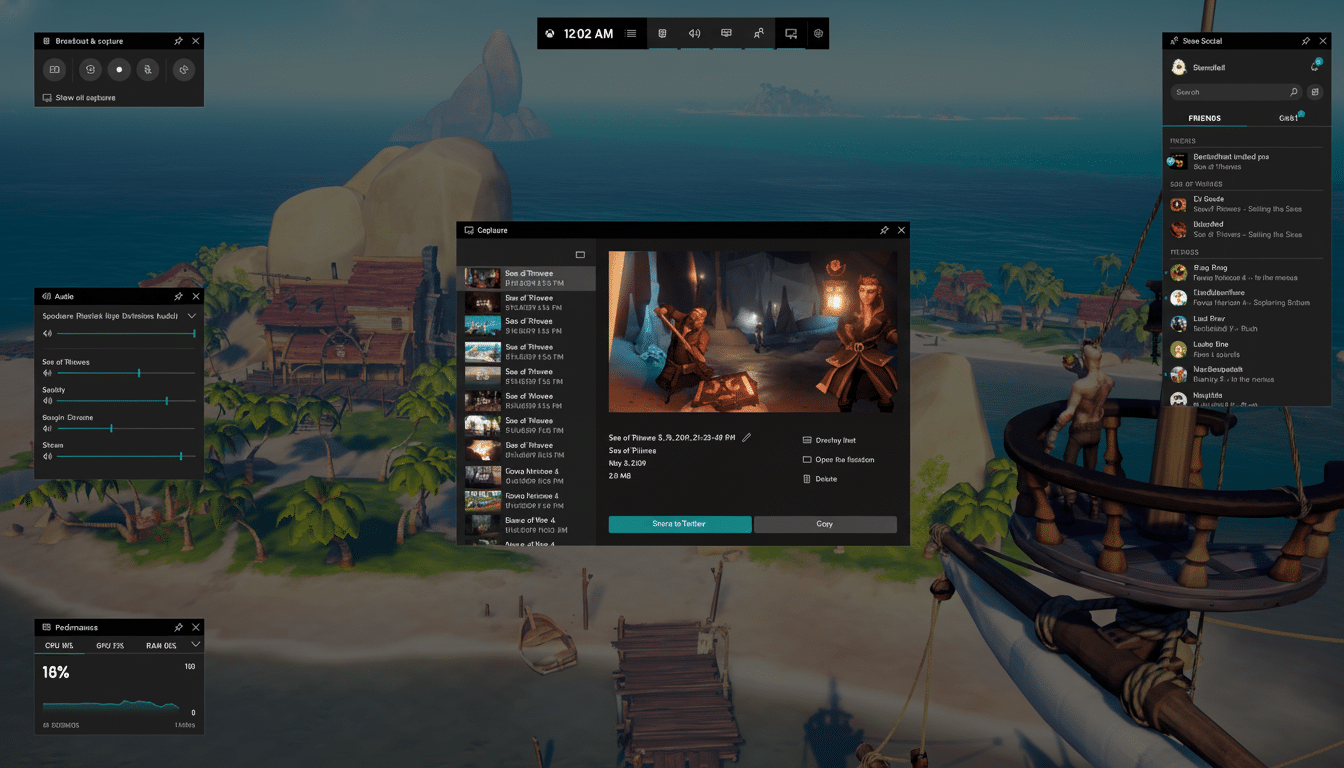
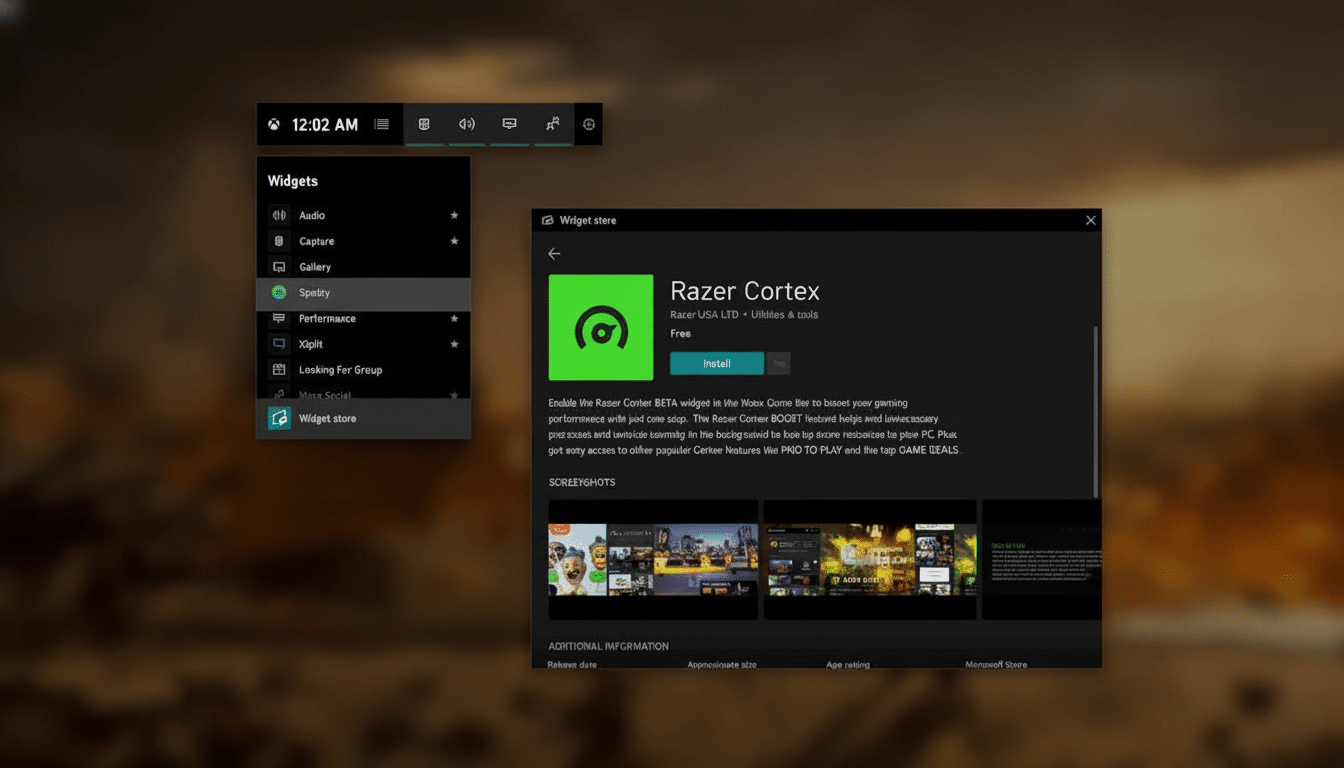
Win + P toggles between projection modes (and Win + K connects to wireless displays) for presentations or second screens. When I’m recording walkthroughs, Win + G invokes the Xbox Game Bar and Win + Alt + R toggles screen recording on or off without interrupting my on-camera flow.
Behind multitasking are windows dancing: Alt + Tab flips apps; Win + Tab displays Task View. It can snap halves with Win + Left/Right, maximize with Win + Up, minimize (or reset) with Win + Down, minimize everything else with Win + Home, minimize all with Win + M, and restore what you’ve minimized with Win + Shift + M.
Pinned apps turn into quick-launchers with Win + 1 through Win + 9. Virtual desktops keep deep work separate from meetings: Win + Ctrl + D opens a new desktop, Win + Ctrl + Left/Right changes your desktops, and Win + Ctrl + F4 closes your current desktop. I maintain study on one monitor, drafts on another and video calls quarantined on a third.
Clipboard, text and input speed
– Some standby actions from my basic editing toolbox: copy, cut and paste by using Ctrl + C, X, V; undo with Ctrl + Z; redo with Ctrl + Y; save with Ctrl + S; select all by using Ctrl + A; and find with Ctrl + F. When formatting goes wacky, Ctrl + Shift + V pastes as plain text in most apps — my cure for a shaggy clipboard style.
Trim your writing time with cursor control: Ctrl + Arrow moves by word, Ctrl + Shift + Arrow selects by word, Ctrl + Backspace deletes a word preceding the cursor, and Ctrl + Delete deletes the word after the cursor. Win + V opens Clipboard history—for flipping between snippets, and Win +. summons emoji, symbols and kaomoji without searching character maps.
Two others that surprise people: Win + Space toggles input language or keyboard layout (on the fly) and Win + H starts up voice typing on your device. It’s also great for outlining or catching quotes during interviews while I’m taking other controls with my hands.
File Explorer power moves
Explorer’s secret speed upgrades save hours of time per month. F2 – Rename file; Ctrl + Shift + N – Create new folder; Alt + Up – Go up a folder level. Ctrl + L takes you to the address bar, Ctrl + E to search, Alt + Enter opens Properties — you don’t need to right-click your way around.
If you live in tabs, then press Ctrl + T to open a new Explorer tab, Ctrl + W to close the current tab or window, and Ctrl + N to open a new window. To clean up, Shift + Delete sends items straight to the great Recycle Bin in the sky, bypassing that emergency room for deleted files — a power move you should use with prudence.
Browser basics that apply to work
Research runs on tab discipline. Ctrl+T creates a new tab, Ctrl+N a new window, Ctrl+W closes a tab, and Ctrl+Shift+T brings back the last closed tab. Ctrl + Tab: move forward through the tabs: Ctrl + Shift + Tab. Ctrl + L to instantly focus the address bar, Ctrl + D to bookmark a page.
When screen sharing or working through compact pages, it is Ctrl + Plus or Minus to zoom and Ctrl + 0 to reset the zoom level to 100%. These are consistent between Edge, Chrome and Firefox, so the muscle memory sticks no matter the browser.
Capture, search and system control
Screenshots are the universal language of tech support and documentation. Win + Shift + S brings up the Snipping Tool for region grabs; Win + PrtScn saves a full-screen cap to your Pictures folder. Also, for quick triaging, you can open Task Manager immediately with Ctrl + Shift + Esc — no need to go through Ctrl + Alt + Delete.
Two sleeper shortcuts I use all the time: Alt + Space opens up the window menu (maximize, move, close) when your mouse is in prison; Shift + F10 brings up a context menu regardless of where the hell you are. They make Windows usable even when touchpads or pointers go squirrely.
Accessibility that benefits everyone
Accessibility features are not just for accessibility, they’re productivity features. Win + Plus will open Magnifier and Win + Esc will close it. Win + Ctrl + Enter turns on Narrator for quick monitors of screen-reader output and Win + U races to Accessibility settings to adjust contrast, captions or text size without digging in menus.
The meta-point: shortcuts lower frictioin. As long-standing user research from design consultancies and also Microsoft’s own guidance indicates, making it possible to keep your hands on the keyboard can reduce these context-switching costs. I have a simple rule of five shortcuts — learn five a week and bind them to a real task until they are automatic.
You won’t be using every shortcut every day, but a fine-tuned set will alter the feel of Windows. Begin by gaining control over windows and clipboard history, add virtual desktops and snipping, and layer in Explorer and browser tab mastery. The gains pile up quietly — until you find you’re doing more with less effort.