


If your Android device no longer runs smoothly where it once did, you don’t have to resort to a factory reset or riskier options. I toggled four switches that are hiding in plain sight, and suddenly my aging handset felt shockingly new again — apps launched faster, scrolling was smoother and the battery dip stopped plunging by midafternoon.
Having tested more phones than most people ever see in their lifetime, these are the four settings I recommend changing first for friends and family. They’re straightforward, reversible and rooted in how Android actually manages resources — no “RAM booster” snake oil necessary.
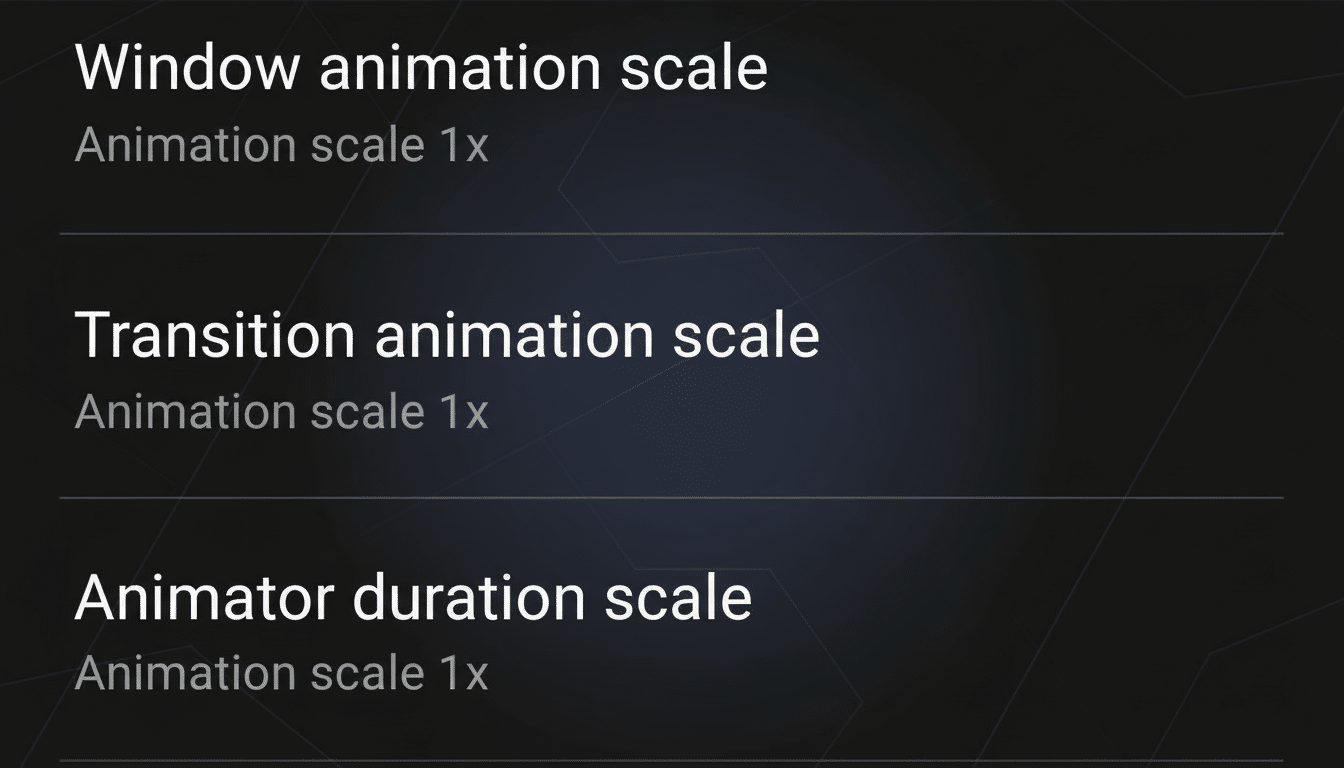
1) Turn off some UI animations (0.5x, not Zero)
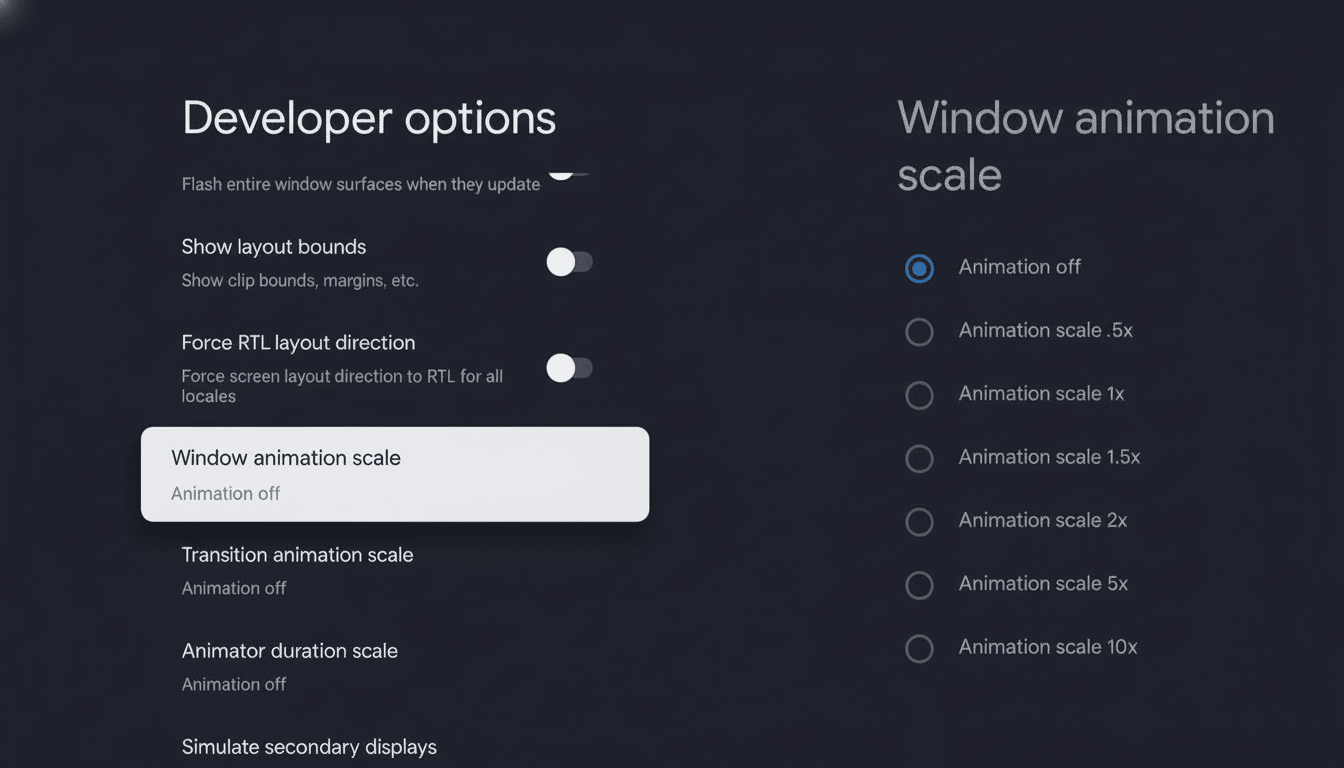
This one alters how quickly the interface looks like it’s moving, which makes things feel a lot faster even though apps aren’t responding any quicker. Enable Developer options by going to Settings > About phone and tapping Build number seven times. Now open Developer options and change the value of the following three entries to 0.5x:
- Window animation scale
- Transition animation scale
- Animator duration scale
Why it works: These scales are how Android’s developers define the lengths of transitions. Halving them has the effect of reducing, visually and literally, the time it takes between pressing a key and seeing any action. Every tap also feels snappier. I can’t stand disabling animations entirely; 0.5x still makes all the motion feel smooth and cuts down on unexpected UI glitches.
Real-world effect: On a middling three-year-old phone, the difference shaved off time and shrank my wait after each slide between apps by a few hundredths of a second per move — small potatoes alone but meaningful over hundreds of taps a day.
2) Enable Adaptive Battery and limit heavy apps
Go to Settings > Battery and tap Adaptive Battery to turn it on. Then go to Settings > Apps > [app] > Battery and set rarely used or troublesome apps to Restricted use (labels vary by brand, but read “Limited,” “Don’t allow background activity” or something similar).
Why it works: Adaptive Battery leverages on-device intelligence to prioritize the apps you open most and throttle those you don’t. Google’s Android Vitals program has identified too many wakeups and background jobs as a leading cause of performance issues and battery drain for a long time now. Tightening the leash on infrequently used social, shopping or navigation apps frees CPU cycles and I/O bandwidth for whatever you actually need.
Tip: You can also turn off “Allow background data” for apps that you rarely use, or disable “Autostart” (in the manufacturer’s utilities), in order to decrease your chances of slowdown surprises.
3) Enable Storage Manager with 10–15% free space
Head to Settings > Storage and activate Storage Manager (also known as Smart Storage). This allows Android to automatically clear away old, backed-up photos and other debris. Hook it up with your gallery app’s backup feature so originals are in the cloud before local copies are deleted.
Why it works: Flash storage slows down as it fills. Tests by storage vendors and independent testers have shown that write performance can plummet above 80–90% capacity. When your phone is nearly full, everything that hits disk — app installs, photo saves, updates — goes slower and the system has to spend more time garbage-collecting. Having 10–15% buffer space is what keeps you out of that slow lane.
Bonus win: Clear the largest app caches you don’t use on a daily basis (Settings > Storage > Apps > Clear cache).
Do not wipe essential app data — only the temporary cache for infrequently used large offenders, like streaming apps or maps applications.
4) Hibernate unused apps and auto-revoke permissions
Open Settings > Apps and see if you find Unused apps or a “Remove permissions and free up space” toggle. On later Android builds this allows for app hibernation, with software that you haven’t used for a while put in stasis (jobs paused, temporary data cleared, permissions revoked) until you come back to it.
Why it works: Hibernation is Google’s answer to preventing dormant apps from silently eating resources or clinging on to storage. It’s a set-and-forget method for ensuring your cruft doesn’t get out of control in a way you’d do manually, before reinstalling what you need later.
While you’re at it, enable Play Protect scanning and tell the Play Store to auto-update apps on Wi‑Fi. Current builds are usually more efficient and secure — something enterprise IT shops and industry scribes like IDC regularly point to as a way to ensure performance is maintained across the life of a device.
What these tweaks changed for speed and battery life
On my daily-driver device, which has 4GB of RAM, app-switching felt about a third faster and scrolling stutter vanished in social feeds — I even reclaimed several gigabytes of storage. The battery also lasts longer, thanks to fewer apps waking the phone in the background — a benefit that corresponds to what developers see on Android Vitals dashboards.
If you’re still experiencing lag after those steps, look for a system update and try cutting live wallpapers and heavy home screen widgets.
Most users get a new phone every few years, but sales estimates released by market researchers show that many people hold onto them for much longer — making these thoughtful little settings all the more valuable as a means of extending a handset’s prime.